

Table of Contents
TetherBox AI Facial Recognition
For useful facial recognition, position the camera where people naturally face it and configure it to capture a sharp, well-lit face while they are moving. This guide helps installers select the lens, choose the capture point and verify the result on site.
Facial recognition is an experimental, opt-in TetherBox AI feature. It needs a compatible GPU or NPU, the correct software and model profile, and configuration on the intended camera. Contact TetherX Support to arrange a trial on your TetherBox. Support for other video analytics does not establish support or recognition accuracy for this feature.
Choose a Capture Point
Use a doorway, reception approach, gate or narrow walking route where faces naturally point towards the camera. A camera covering an entire room may detect people while capturing too little facial detail to identify them.
- Give the face enough of the image. Use a dedicated entrance camera alongside an overview camera when one view cannot provide both detail and coverage.
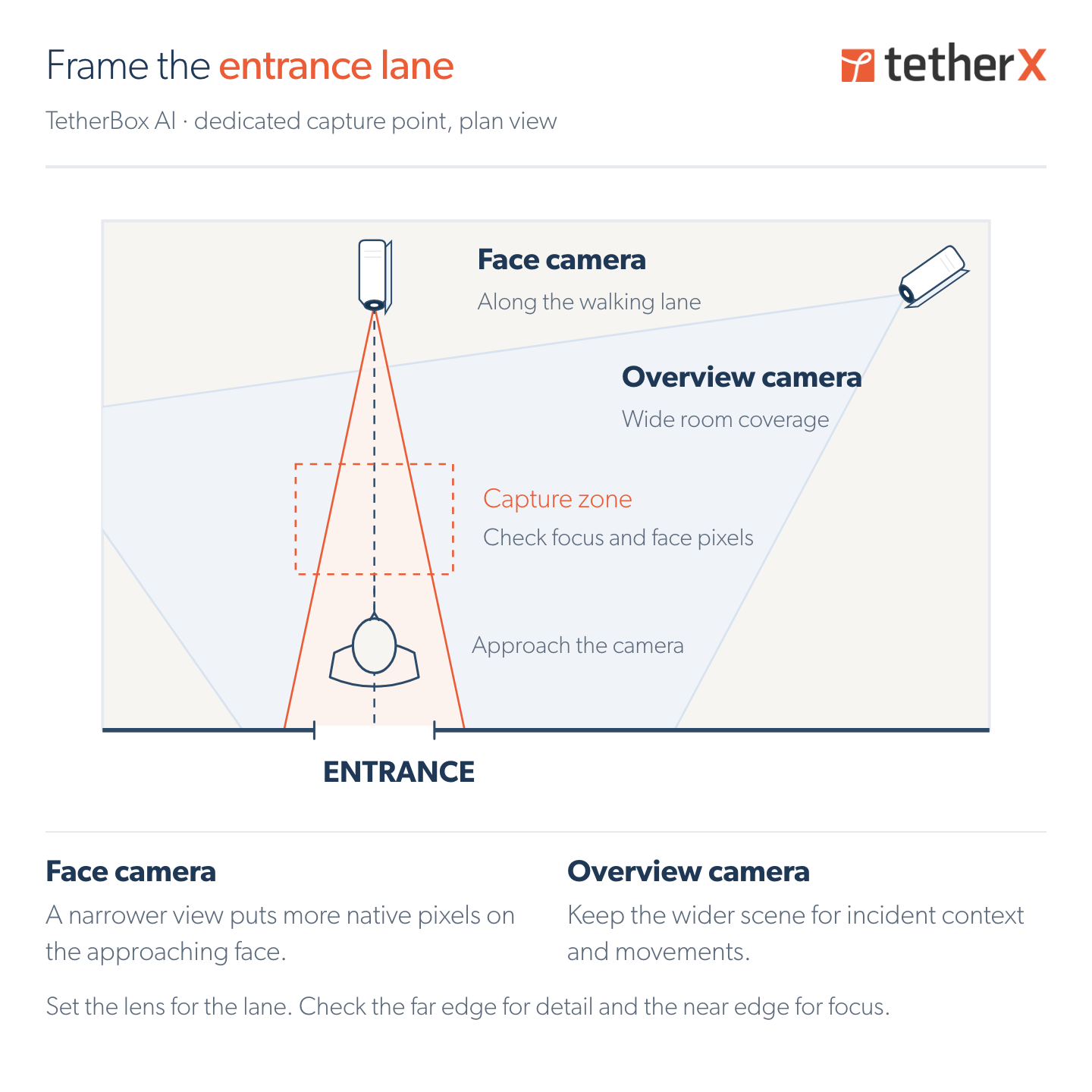
Choose the lens for the width of the capture lane. Optical zoom or an appropriate fixed focal length can put more real pixels on the face; digital zoom cannot recover missing detail. Check face size at the far edge of the capture zone and focus at its near edge. Test every lane and each walking direction you need to cover.
Tip: A short, predictable approach towards the camera is usually a better capture point than the centre of a large room. Keep the overview view for incident context.
Set the Height and Viewing Angle
Start near eye height, approximately 1.5-1.7 m for an adult entrance, then adjust for the people using that entrance. Check shorter and taller adults, children and wheelchair users where relevant. Keep both eyes and the lower face visible.
- Keep the view close to frontal. A high camera mounted close to the walking route can hide the eyes and lower face, even when the face appears large.
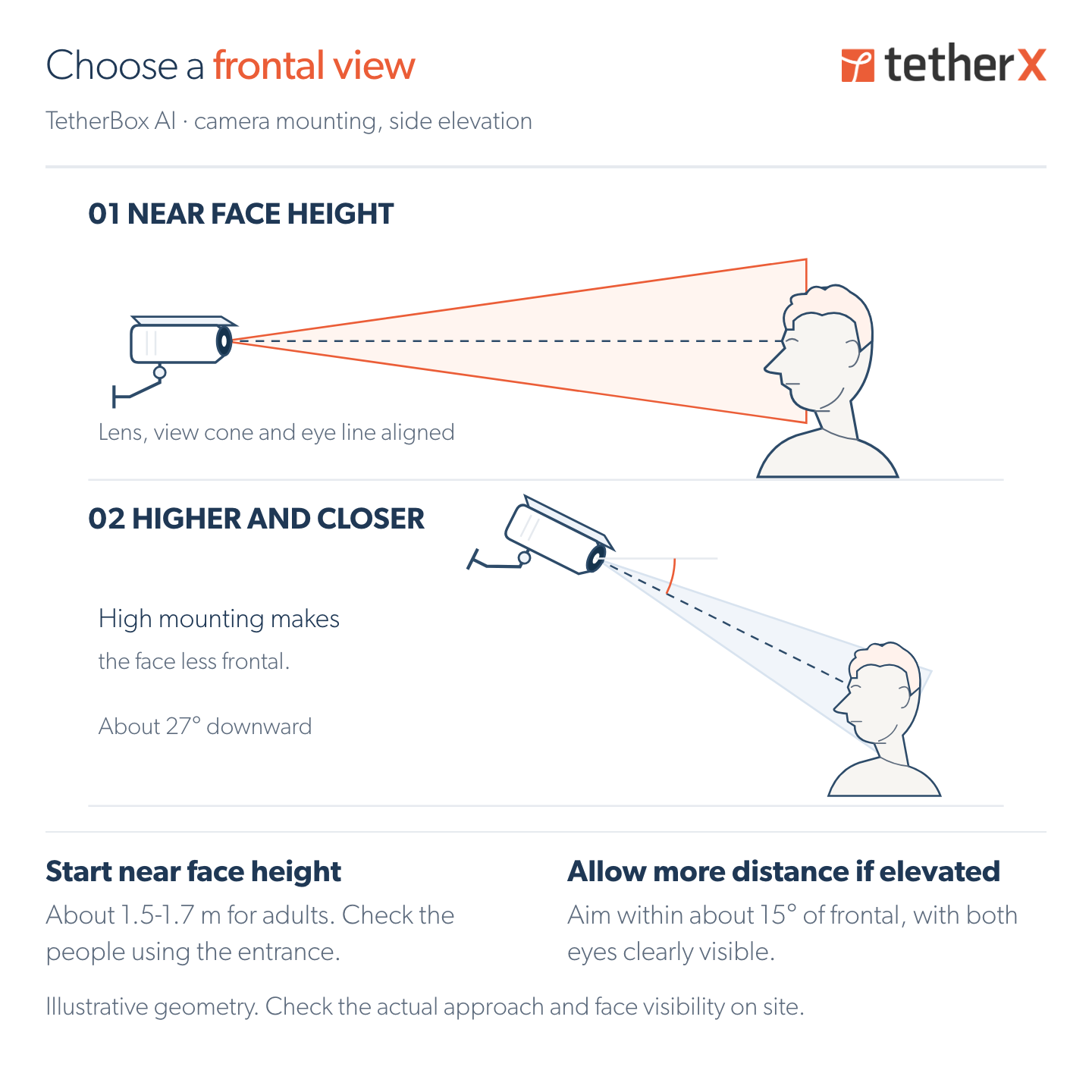
Prefer a near-frontal view. Within about 15° of frontal horizontally and vertically is a useful design aim, not a pass/fail limit. A ceiling camera or a larger angle can be suitable when the captured faces pass the site walking tests. Check the combined camera angle and the person's natural head position.
Height and distance work together. For example, a camera at 2 m looking at eyes at 1.6 m from 3 m away has a downward angle of about 7.6°. A camera at 3 m looking at the same eye height from 2 m away has an angle of about 35°, before the person looks down.
Measure Face Pixels and Eye Spacing
Measure the original image received by facial recognition, before alignment or resizing. Face width and height describe the face box. Eye spacing is the distance between the centres of the two eyes. They measure different things: a large profile face can still have very little visible eye separation.
| Detail level | Face width and height | Eye spacing | Use |
|---|---|---|---|
| Capture floor | At least 40×40 px | At least 20 px | Current trial admission floors. Other quality checks still apply; these values do not guarantee a usable match. |
| Minimum planning reference | About 80×80 px | Check eye visibility and detail separately | Our lower planning reference, not another runtime rejection threshold. |
| Preferred-detail indicator | At least 117×117 px | At least 75 px | Our preferred-detail label. Useful planning guidance, not a recognition requirement. |
| Optional extra headroom | Around 200×200 px | Around 100 px | Extra detail where practical, particularly for reference photos. Smaller usable faces are not rejected for missing this target. |
Frame the capture point to provide clear faces with useful detail, then verify recognition with real walking tests. The preferred-detail indicator helps with planning; the extra-headroom row is optional. A camera that consistently produces usable matches does not need replacing simply because its faces are smaller than 200×200 pixels.
- Measure the face and the eyes separately. Good positioning, focus and exposure remain necessary at every resolution.
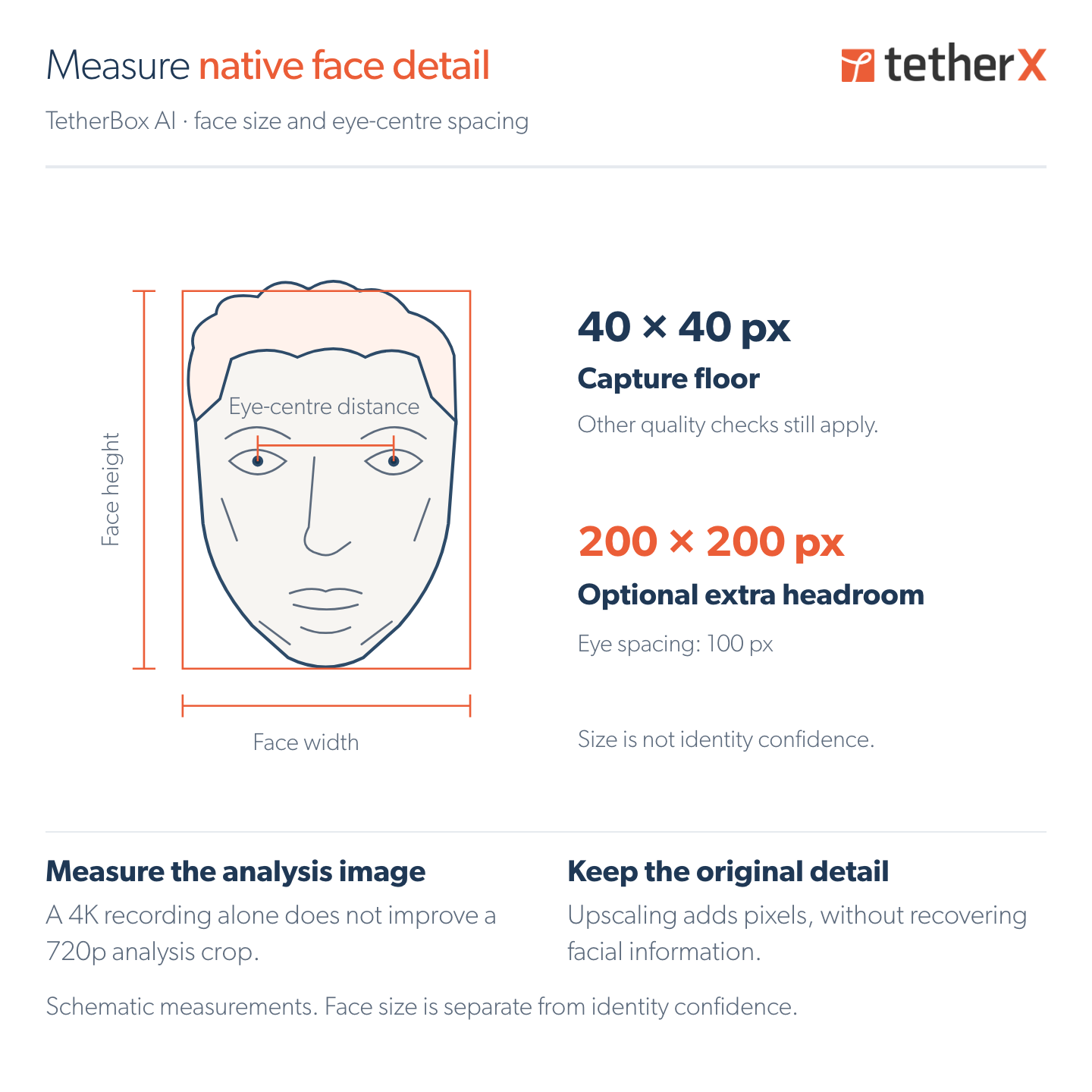
Use the camera's pixel counter or an unscaled captured frame. Increasing megapixels only helps if the lens, focus, exposure and stream preserve that detail. At the same field of view, a 3840-wide image has three times the linear pixels of a 1280-wide image: a 40-pixel-wide face could become 120 pixels wide, if the source genuinely resolves it.
Tip: Compare the analysis image with the recording. A 4K recording only helps when facial recognition receives the native detail; enlarging a crop adds no detail.
Face size is not identity confidence. The feature also checks detail, visible facial features, pose and blur. A suggested identity remains subject to matching thresholds and operator review. A face turned away or obscured by a hand, mask, hat or other object may provide too little information to assess. Detecting a face covering is a separate analytic and does not identify the person underneath it.
Light the Face and Control Motion Blur
Provide even light on the face. Avoid strong backlight from windows, sky or bright outdoor areas. Check that neither eye is lost in shadow and that skin highlights retain detail.
- Use enough light for a short exposure. Start with 1/100 s or faster for walking people, then try a faster shutter if the moving face still smears.
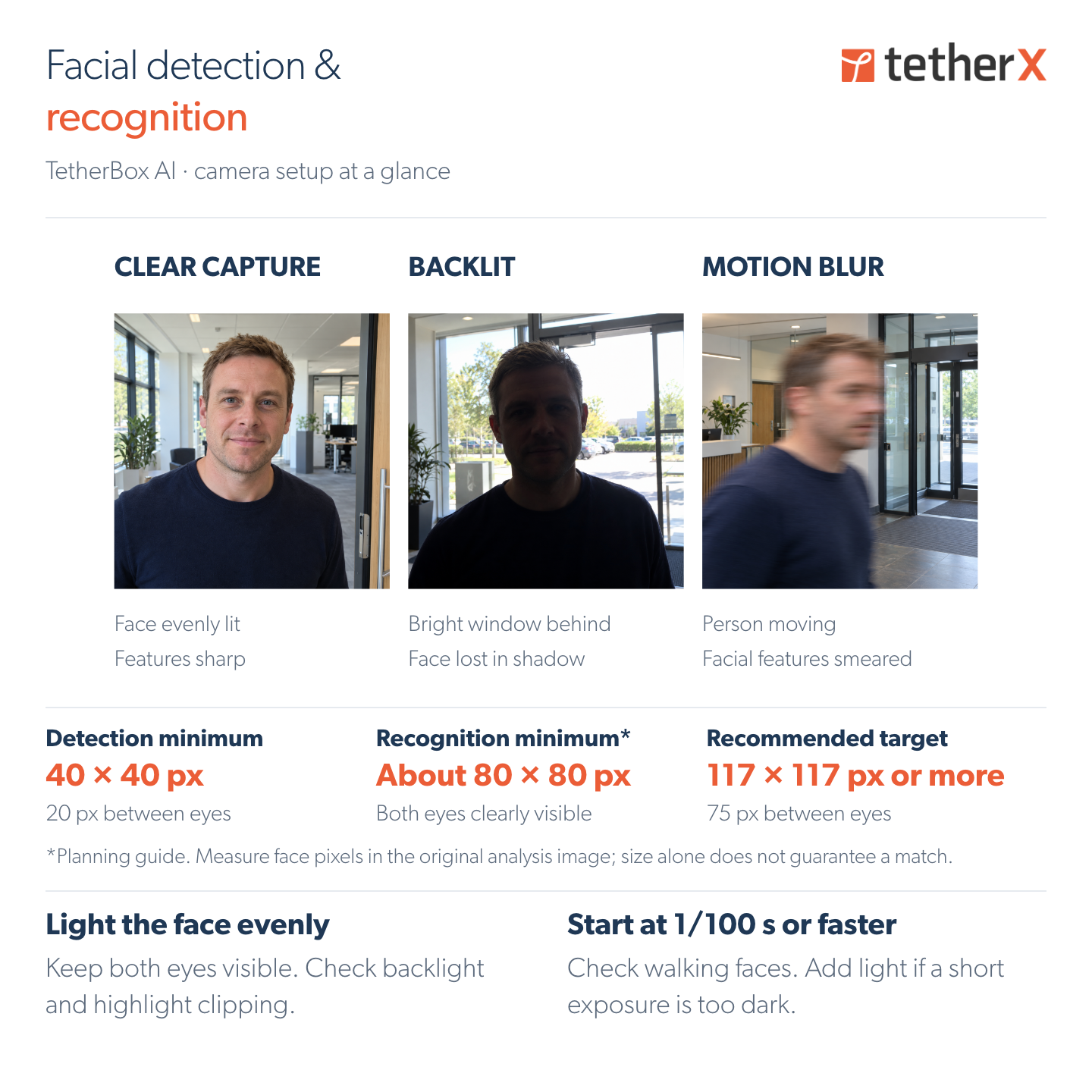
A slower shutter brightens the image but can smear moving faces. More gain can add noise. Add light if needed, then inspect walking faces after each adjustment.
Use enough even visible light to keep moving faces sharp at the chosen shutter speed without excessive noise. Assess the captured face rather than requiring a fixed lux value: lens aperture, sensor sensitivity, exposure and gain all affect the result. Measure light at the face when diagnosing problems; the camera's advertised minimum illumination does not establish recognition quality.
Test WDR and exposure regions on the actual moving subject. Check for ghosting, washed-out features and noise rather than judging only the room's appearance. Set anti-flicker for the site's 50/60 Hz lighting and verify it at the chosen shutter speed.
Qualify daylight, backlight, sunrise/sunset and the intended after-dark lighting separately. A successful daytime walk does not establish night-time performance.
The current trial skips frames classified as infrared/night imagery. For recognition after dark, plan suitable visible lighting and a usable colour image, and confirm the intended configuration with TetherX Support. A camera switching to infrared may continue recording and detecting people without producing face captures.
Configure Resolution, FPS and Bitrate Together
Choose the camera and lens for the face pixels at the capture point. 1080p or higher is a convenient starting choice, not a minimum requirement; a well-framed 720p view can be usable. Select higher resolution when it adds useful facial detail, and check decoding capacity and the actual analysis path.
3 Mbps at 720p and 3 Mbps at 4K are different quality budgets. At the same frame rate, 4K has nine times as many pixels. Required bitrate also depends on codec, encoder quality, movement, noise, GOP and rate control.
We recommend the following H.264 / 25 FPS pairs as starting points for commissioning:
| Resolution | Initial bitrate |
|---|---|
| 1280×720 (approx. 0.9 MP) | 2 Mbps |
| 1920×1080 (approx. 2.1 MP) | 4 Mbps |
| 2304×1296 (approx. 3 MP) | About 6 Mbps |
| 2560×1440 (approx. 3.7 MP) | About 8 Mbps |
| 2560×1920 (approx. 5 MP) | About 8 Mbps |
| 3840×2160 (approx. 8.3 MP) | About 8-12 Mbps |
Treat these as commissioning starting points, not guaranteed quality minimums. Inspect the moving face crops and adjust for the actual scene. Do not automatically halve the values for H.265; compare the chosen encoder's output and confirm decoding support on the TetherBox.
For 4K H.264, start around 8 Mbps and inspect faces during movement. Increase towards 12 Mbps, or higher if needed, when compression removes useful detail. Use quality-based variable bitrate where available and distinguish the configured ceiling from the measured average. H.265 and smart compression can use less bandwidth, but need their own compatibility and face-quality checks.
For qualification, start with smart codec and region-of-interest compression disabled, then compare face crops before enabling them. Allow enough peak bandwidth when someone enters the scene; a tight bitrate cap may discard detail during movement.
| Camera setting | Commissioning starting point | Verify on site |
|---|---|---|
| Camera frame rate | Start around 15-20 FPS for normal walking | Use 20-25 FPS or more for fast movement or a short capture window; verify clear usable frames on site. |
| GOP / I-frame interval | About 1 second, such as 15 frames at 15 FPS or 20 at 20 FPS | A compatibility/recovery starting point, not a face-quality threshold; longer intervals need their own live tests. |
| Shutter / maximum exposure | 1/100 s or faster | Moving faces remain sharp without excessive noise or flicker |
| Focus and lens | Optical framing for the capture lane | Detail at the far edge; focus at the near edge and in night mode |
| WDR, gain and noise reduction | Adjust against moving face crops | No hidden eyes, ghosting or smeared features |
| Time synchronisation | NTP and the correct timezone | Reliable event timing and comparison with recordings |
| Text overlays | Keep clear of the face zone | No date, logo or channel name covering facial features |
Camera FPS, shutter time and TetherBox inference FPS are independent settings. A high camera FPS cannot undo motion blur from a long exposure.
Encoder changes can affect recording and live view. Record the original values, then check both services after each change. Automatic Configuration explains which settings TetherX controls.
Commission with Real Walking Tests
- Record the camera model, lens, mounting height, capture distances, lane width, resolution, codec, FPS, GOP, bitrate, shutter, gain, WDR and lighting conditions.
- Verify the face size and eye spacing in the image actually used for analysis. A snapshot used for confirmation must also be fresh enough to show the same person and pose.
- Walk normally through every lane and the near/far edges. Include natural head turns and representative glasses, hats and heights. Repeat under backlight and at night.
- Inspect the retained face crops. Check missed visits, unusable captures, correct matches, incorrect matches and unknown people separately. Repeated captures of one person are not additional unique people.
- Use clear, separate reference photos for known people. Review suggested matches and correct errors; do not treat a possible match as confirmed identity.
- Check recording, live view and capture freshness with all cameras running. Measure TetherBox CPU and accelerator load under that full workload.
If quality is poor, improve the capture point, optical framing, lighting, focus and exposure before relaxing recognition quality checks. Contact TetherX Support with the camera model, TetherBox serial, example time and the settings used if results remain unreliable.
Related Articles
- TetherX AI - on-device video and audio analytics.
- Automatic Configuration - how TetherX configures camera streams.
- Hardware Specifications - TetherBox hardware choices.
- Support - arranging a facial-recognition trial and troubleshooting a capture point.
Referenced in: