

Table of Contents
Monitoring Station Operator Guide
Use this guide to work an event from the queue to a recorded outcome. For operator and supervisor roles, the monitoring strip and performance reports, see Control Rooms.
Work the Event Queue
Use List View for routine monitoring. It shows more events at once and supports chronological processing. Thumbnail View is useful for visual scanning. Switch views from the view menu.

Events are Open, Pending, Closed or Hidden. Opening an event marks it Pending for three minutes, so another operator does not start the same review.
Tip: Process the oldest open event first to avoid leaving a completed incident unseen while newer events arrive.
To clear a backlog, set the date to today and process oldest first. Use the Real-time toggle to pause new events while you catch up, then turn it back on. You can select events by dragging, using the row checkbox or the Select menu. Bulk actions over 15 events require the Allow Bulk Event Actions permission in the operator's CCTV permissions.
Warning: Turn Real-time back on after clearing a backlog. Events continue recording while it is paused, but new ones do not appear in the queue.
Review and Respond in the Operator Console
Open an event to see the recording, panel and site details, site notes and post orders, and response controls together.
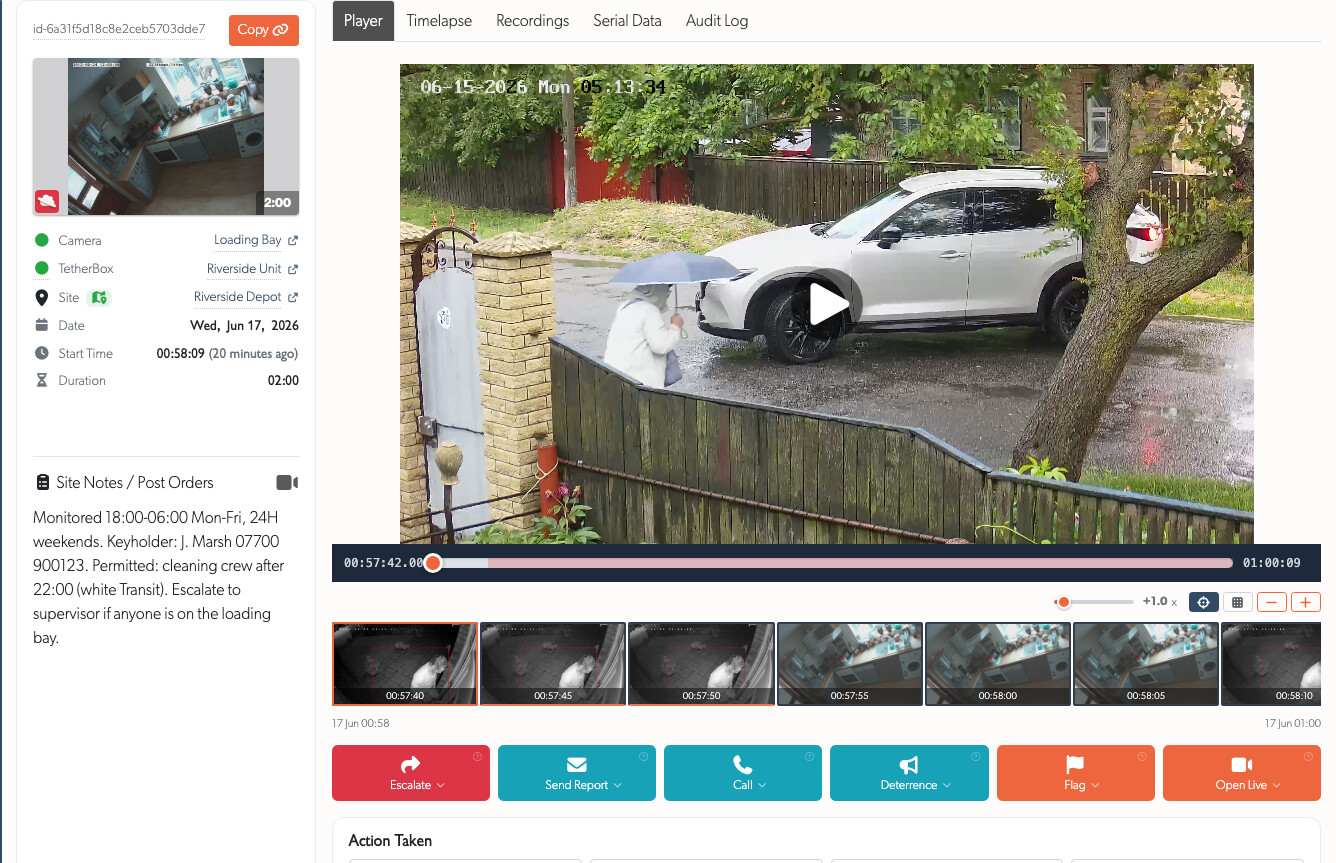
The left panel shows the event ID, site, camera, time and duration. It also provides a map link, map-pin popover and live camera preview. The toolbar lets you send a report, call a site contact or supervisor, escalate the incident, trigger deterrence where available, flag footage and open live video.

| Action | Use it for |
|---|---|
| Send Report | Send a prefilled incident or technical report to eligible site contacts. |
| Call | Call a site contact or Call Supervisor for an immediate decision. |
| Escalate | Send to On-Call Supervisor when a supervisor should take over. |
| Deterrence | Siren, talk-down or a recorded warning, where the camera supports it. |
| Flag | Keep footage for 30 days, 90 days or one year. |
| Open Live | Open this camera, its related zones or the site live. |
Eligible report and call contacts are active user or admin accounts that can access the site. Call contacts also need a mobile number. Supervisors must be operator accounts marked as supervisors and permitted to access the site.
Tip: Use Call Supervisor for an immediate decision and Send to On-Call Supervisor when a supervisor should take over the incident.
Record the outcome with Action Taken, then choose Close & Next Event, Close Event or Return to Queue. Add an Event Note so the next operator can see what happened. To hand an incident over, flag the footage and return it to the queue.
Warning: Footage can only be flagged while the TetherBox is online, because it must receive the retention instruction. Wait for it to reconnect before handing over an event that needs preservation.
Keep Context While You Work
The Monitoring Strip holds an event with active analytics or motion after you close it. It shows a countdown, flashes when new activity arrives and lets you reopen the event. The default period is five minutes.
Hover a camera icon in List View for a live preview. Turn on Live Preview in the view menu to replace the thumbnail of an active event with live video.
Use Site Notes and Post Orders
Site notes and post orders give the standing instructions for an incident: keyholders, access details, monitored hours, priority cameras, escalation steps and attachments. They appear in the console and event list. Zone and camera notes can add instructions for a particular area or device.
Viewing Site Notes in the List
Use the notes icon next to the site name to open the notes popover.
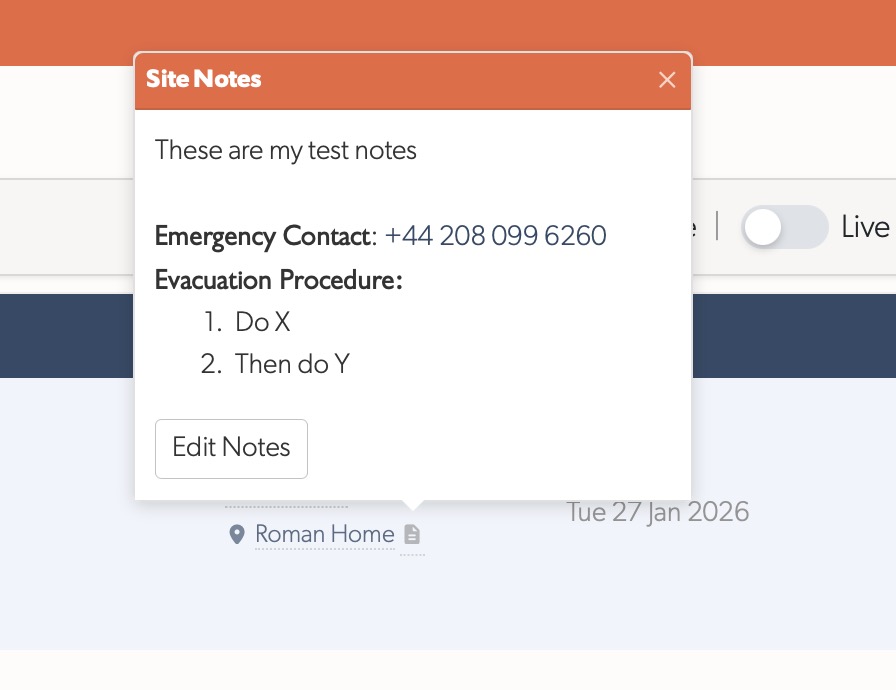
Update notes from the popover if you have permission, otherwise ask a supervisor to update them.
Tip: Check site notes before escalating an event. They can include the keyholder, access instructions and the site-specific response procedure.
Report a Technical Issue
From the console, open Send Report → Report Technical Issue. The ARC Performance Report opens already linked to the event. Include the date and timezone, a short time window, affected sites, screenshot and any available speed-test or workstation details. Use the Support page if the issue is not tied to one event.
Related Articles
- Control Rooms - roles, monitoring-strip behaviour and ARC reporting
- ARC Performance Reports - daily event and operator metrics
- Events View Menu - filters, grouping and display options
- User Permissions - operator, supervisor and bulk-action permissions
- Notifications - escalation and notification setup
Referenced in: