

Table of Contents
Camera Troubleshooting
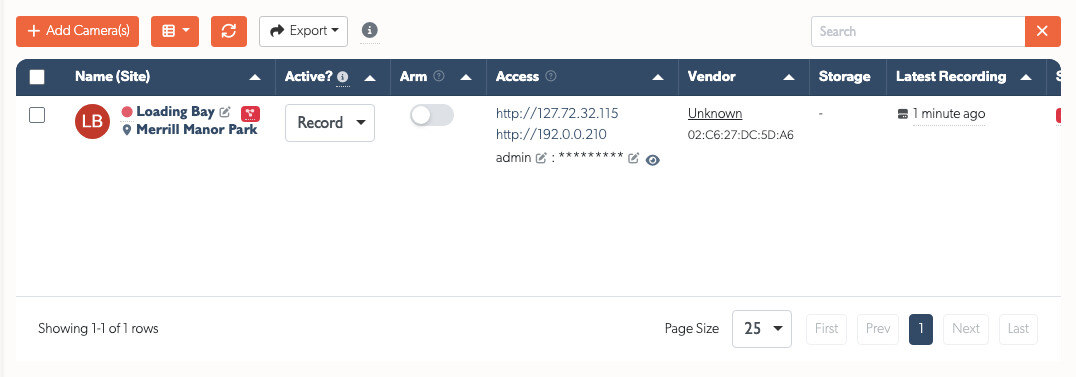
Start with the camera's status in Admin → Cameras, then follow the path that matches the symptom. Test the stream with Testing with VLC before changing camera settings. It tells you whether the camera itself can supply the stream.
| What you see | Start here |
|---|---|
| Camera is offline | camera-is-offline |
| Camera is online but has no live video or recordings | camera-is-online-but-video-or-recording-is-missing |
| A wrong-password or account-lock message | wrong-password-or-account-locked |
| Camera repeatedly goes offline | camera-keeps-going-offline |
| Gaps or corruption in otherwise working footage | Footage Gaps |
Tip: Test the stream in Testing with VLC before changing camera settings. It distinguishes a camera stream fault from a TetherBox or network issue.
Camera Is Offline
Work from power and cabling towards the network:
- Confirm that the camera has power. Check the PoE switch, injector or local supply and the camera's status LED.
- Replace the patch lead or test the cable with a known-good device.
- Try the camera's web interface from the same network as the TetherBox.
- Confirm the camera has a unique IP address and is on a network the TetherBox can reach.
- Check whether a router, switch, VLAN or addressing change coincided with the fault.
If the camera was working before the fault, power, PoE capacity, cabling and a recent network change are the most likely places to start.
Camera Is Online but Video or Recording Is Missing
- Open live view. If it works, check the recording schedule and configuration.
- Test the recording and analytics streams independently in Testing with VLC.
- Check the camera credentials and stream path.
- Check the camera firmware version and update it when the manufacturer provides a suitable fix.
- Check TetherBox health and CPU use. See TetherBox Troubleshooting if the host is under load or unhealthy.
Use Footage Gaps for packet loss, corrupted clips or intermittent recording. Use Valid Camera Stream Paths when TetherX reports an invalid stream path.
Wrong Password or Account Locked
First, check the credentials against the camera's own web interface. Use Tunnelling when you need to reach that interface remotely.
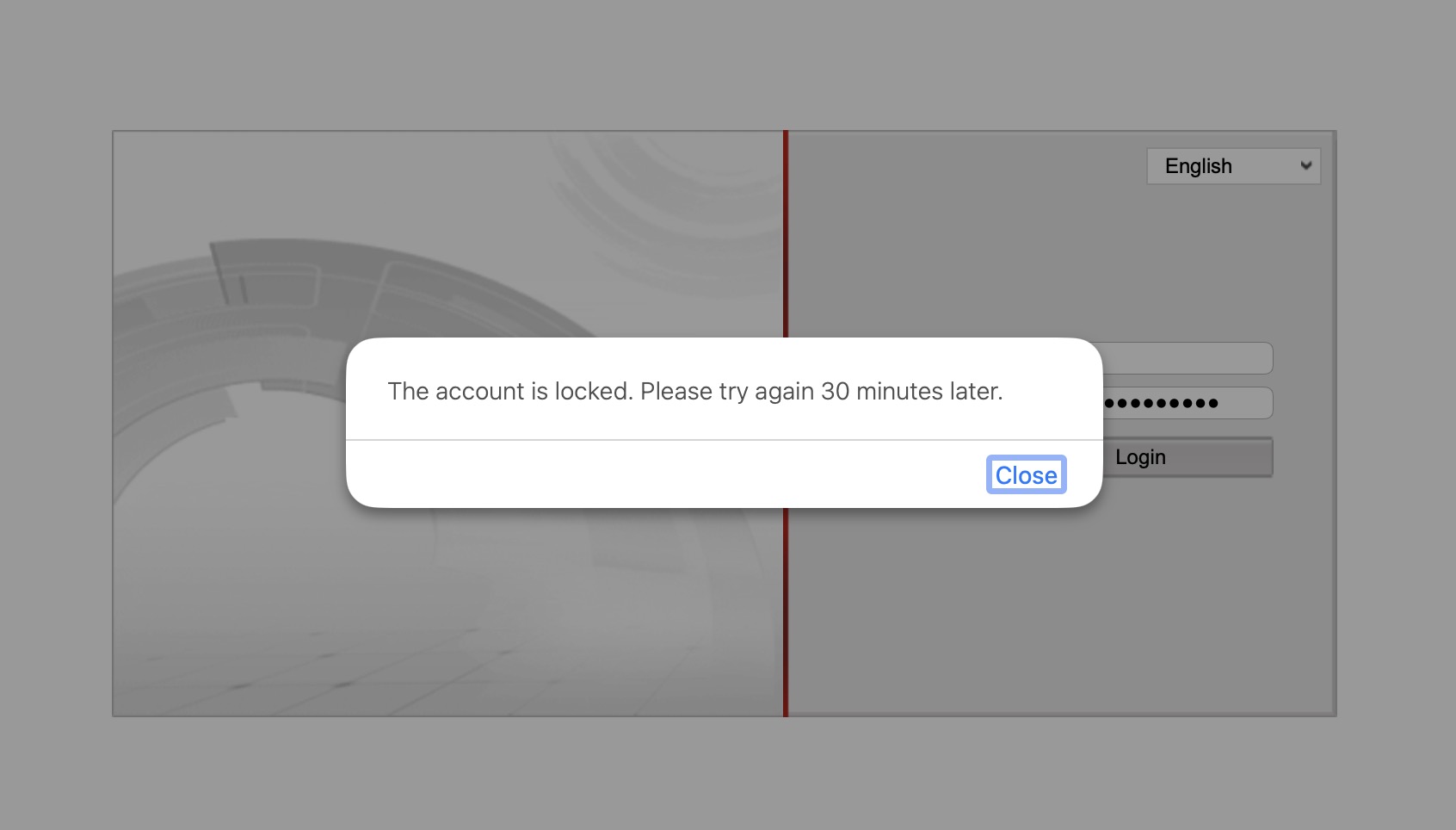
If the camera reports that the account is locked:
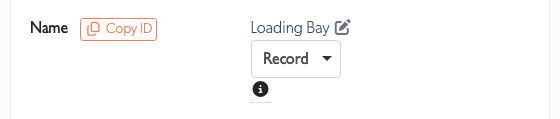
- Set the camera to Off, using the control beside its name, so TetherX stops retrying the old credentials.
- Wait for the camera's lockout period to expire, or reboot the camera from its web interface or the Camera API Tab.
- Confirm the correct credentials in the camera, update them in TetherX, then set the camera back to Record.
If the account still does not work, follow the manufacturer's reset procedure. A reset removes the camera's existing network and user configuration.
Warning: Resetting a camera removes its current configuration. Record the required network settings before you start.
Camera Keeps Going Offline
Isolate the fault one component at a time:
- Cable or connectors: replace the cable, inspect terminations and keep Ethernet runs within 100 m.
- PoE: confirm the switch has enough budget for every camera, then try a different PoE port or injector.
- Switch or network path: move the camera to a different switch port and check for VLAN, router or wireless-link changes.
- Powerline or Wi-Fi: temporarily use direct Ethernet. These links are often unsuitable for continuous video traffic.
- Camera hardware or environment: check for overheating, water ingress or a fault that returns after the network tests pass.
Warning: Powerline adapters often cause dropped connections and packet loss with video. Replace them with suitable Ethernet cabling where possible.
Multiple Cameras Have the Same IP Address
Some cameras arrive with the same static address. Configure each one separately before connecting them all to the same network:
- Disconnect all but one camera.
- Open its web interface using the default address from the manufacturer.
- Set a unique static IP address, or enable DHCP.
- Save the change, then repeat for the next camera.
Contact Support
If the fault remains, send TetherX support the camera manufacturer and model, camera IP address, screenshots or error messages, VLC test result and the TetherBox serial number.
Related Articles
- Testing with VLC - test a camera stream independently
- Footage Gaps - diagnose packet loss and recording gaps
- Valid Camera Stream Paths - correct an invalid stream URL or path
- TetherBox Troubleshooting - diagnose TetherBox health and resource issues
- Tunnelling to Network Devices - open a camera interface remotely
Referenced in: