

Table of Contents
Tunnelling to Network Devices
Tunnelling opens a temporary connection to a device on the TetherBox's local network. Use it to configure a camera, recorder, switch or other authorised device remotely, without port forwarding or a static public IP.
Before You Open a Tunnel
The TetherBox and target device must be online, and TetherX must have discovered the device. The target also needs an enabled web interface or other service on the port you want to reach.
The Tunnels tab is available to administrators, integrators and TetherX staff. Your account needs Allow Remotely Tunnelling to Devices in its permissions. Integrators and staff also need Support Access enabled for the timeline.
Open a Known Web Interface
Where TetherX has found a device web interface, use the tunnel button beside its IP address in the device page or list. TetherX opens the tunnel and the device page together, preferring HTTPS over HTTP.
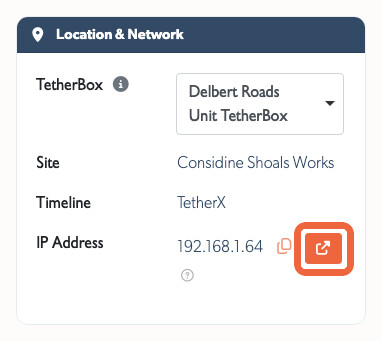
Use the Tunnels tab instead when you need another port or want to record why you opened the connection.
Choose a Port and Open a Tunnel
- Open Admin → Devices, or Cameras for a camera.
- Open the device, then its Tunnels tab.
- Choose a discovered port, or choose Custom... and enter the port number.
- Add a reason. It appears in the tunnel list and the Audit Log.
- Click Open Tunnel.
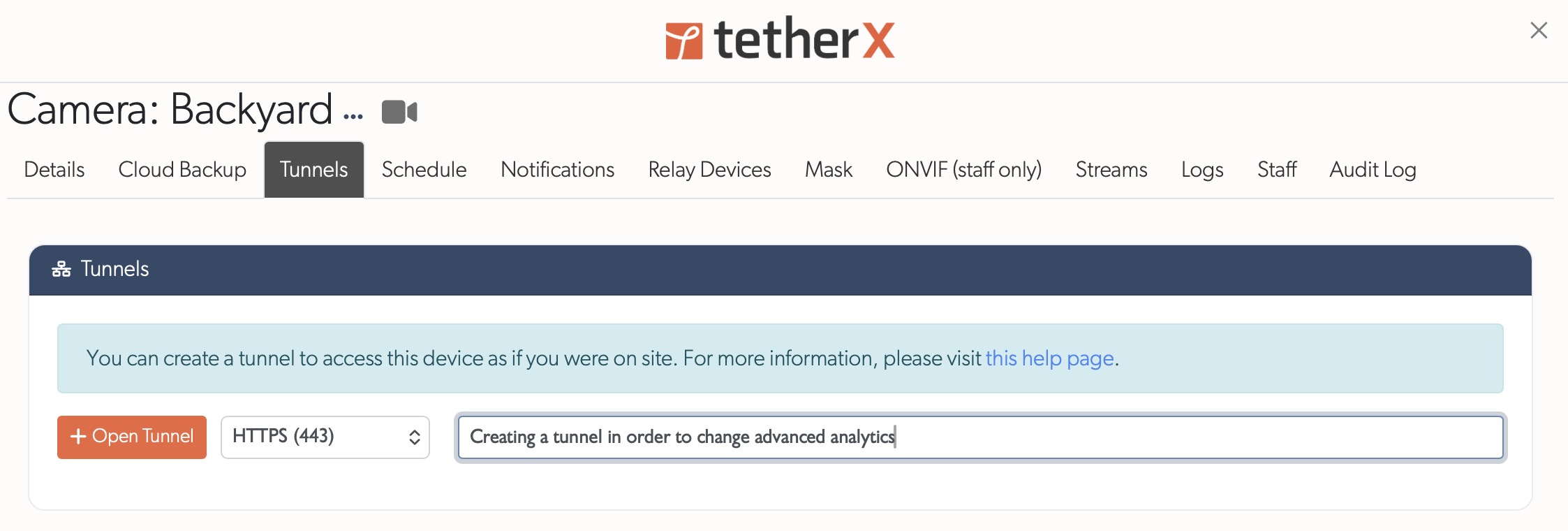
The port menu lists services TetherX found on the device, with HTTPS and HTTP first. It can also list RTSP, SSH and VNC. Some devices need more than one port, so open a separate tunnel for each service you need.
Use and Close the Tunnel
The list shows the address to open, target port, reason and remaining time.
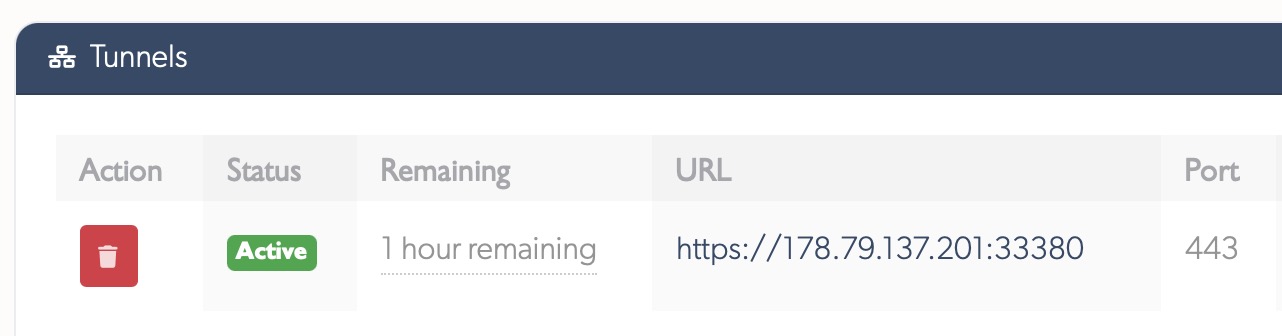
Tunnels close automatically after one hour. Use the red close button to end one sooner. On an HTTPS device, the browser may warn about its self-signed certificate. Confirm the certificate is for the device you intended to reach, then use the browser's Advanced option to continue.
Tip: Close a tunnel as soon as you have finished configuring the device, rather than leaving it open for the full hour.
Use Tunnels Safely
| Target protocol | Connection protection |
|---|---|
| HTTPS or SSH | Encrypted end to end |
| HTTP or Telnet | Unencrypted, use only on a trusted network |
Tunnelling does not require port forwarding or a static IP on the site network. It grants access to the device's own interface, so make configuration changes only when you are authorised to do so.
Older devices that require ActiveX, Java, Silverlight or another browser plugin may not work in a modern browser. Check for a manufacturer firmware update or use the device's supported management method.
Warning: HTTP and Telnet do not encrypt traffic. Use them only on a trusted network.
Related Articles
- How TetherBox Detects Devices - network discovery and device detection
- Support Access - let an integrator or TetherX staff assist remotely
- Camera Troubleshooting - diagnose a camera connection issue
Referenced in:
- Hikvision AX Pro Integration
- Audio Recording
- Automatic Configuration
- Axis Setup
- Camera Troubleshooting
- Footage Gaps
- Hanwha / Wisenet / Samsung Setup
- Hikvision Setup
- How to Enable ONVIF
- Mobotix Setup
- Setting Up ANPR Cameras
- Frequently Asked Questions
- Questions to Ask Your Security System Supplier
- Support Access
- User Types
- Control Room Software Integration
- Patriot Systems Integration
- Getting Started for Integrators
- Pre-Flight Checklist
- Troubleshooting Kit
- How TetherBox Detects Devices
- TetherBox
- TetherBox Recording Capacity
- Where to Run the TetherBox Software