

Table of Contents
How TetherBox Detects Devices
TetherBox automatically finds cameras, recorders and other IP devices on its local network. It tracks a device by its MAC address, so it can follow an address change and report whether the device is online.
This discovery supports the Devices list, device health, tunnelling and automatic camera setup.
What TetherBox Looks For
TetherBox combines several network checks, scheduled to limit unnecessary traffic:
| Check | What it helps identify |
|---|---|
| ICMP and ARP | Devices present on the local network and their MAC addresses |
| Broadcast discovery | Devices that announce themselves, including some camera and drive protocols |
| ONVIF, API and SNMP requests | Device type, manufacturer, model and health information |
| Port checks | Services such as HTTP, HTTPS, RTSP, SSH and VNC |
Discovery runs on configured VLANs and subnet ranges. When you add a camera manually on another range, TetherBox begins scanning that range too.
Tip: Open Devices after connecting equipment to confirm what TetherBox found, its address, MAC address and open ports.
The default ranges include common camera and router networks such as 192.168.0.0/24, 192.168.1.0/24, 192.168.5.0/24, 192.168.254.0/24, 10.1.1.0/24, 10.10.1.0/24, 10.12.5.0/24, 172.16.30.0/24 and 192.168.88.0/24.
Devices on Other VLANs
When a camera or device is on another subnet, TetherBox can create a virtual interface with an unused address on that subnet. This lets it reach the device without needing a separate physical network adapter.
Open Admin → TetherBoxes → select the unit → Network to see the addresses it uses. On a managed network with planned routing, configure that routing instead of relying on automatic network joining.
Control Discovery and Network Joining
Open Admin → TetherBoxes → select the unit → Settings. The Network Settings card has the discovery controls.
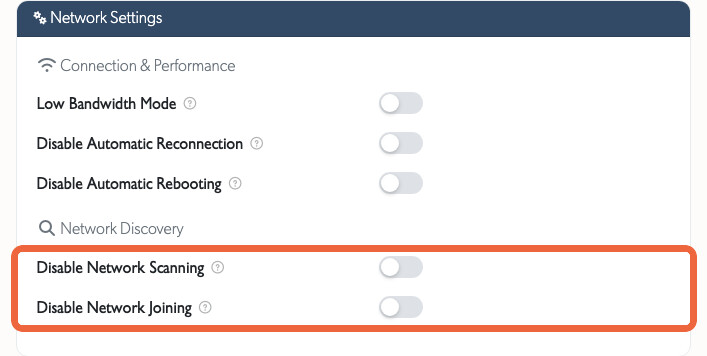
- Disable Network Scanning stops TetherBox probing for new devices and tracking address changes. Use it only where scanning would disrupt a constrained network or unsuitable wireless link.
- Disable Network Joining stops TetherBox creating virtual interfaces on other VLANs. Use it on managed networks with static addressing, where an unused address could not be determined reliably.
If a device was offline during a scan or hides its MAC address, an apparently unused address can later belong to that device. Disable automatic network joining and configure routing manually when that risk is unacceptable.
Warning: On a managed network with static addressing, automatic network joining can conflict with an offline device's address when it returns. Use planned routing instead.
When Discovery Is Incomplete
Discovery relies on seeing each device's real MAC address. Some network equipment hides or rewrites it, which can prevent TetherBox from tracking IP changes accurately, reporting device health or avoiding false offline alerts.
Check whether MAC filtering, MAC cloaking, virtual MAC addressing or wireless bridge mode is hiding the original device address. Adjust the network equipment according to its documentation, or use manual routing and device configuration.
Ubiquiti airMAX links using ARP-NAT are a common example. NanoStation, LiteBeam, PowerBeam and airFiber links can show every camera behind the link with the station's single MAC address.
To confirm, run arp -a on the LAN. If several camera IP addresses share one MAC address, configure transparent bridging on both ends of the link:
- Open the airMAX device Network tab.
- Set Network Mode to Bridge.
- Enable WDS (Transparent Bridge Mode) and apply the change.
The cameras can continue recording before this is corrected. Transparent bridging restores individual camera tracking and ONVIF features. UniFi access points are not affected.
Devices Beyond the Local Network
Devices reached only through the public Internet may not be discovered automatically. Add them manually, or place a TetherBox on the network segment that contains them. See Where to Run TetherBox Software for the deployment trade-offs.
Related Articles
- Tunnelling to Network Devices - open an authorised remote connection to a device
- How to Enable ONVIF - enable improved camera identification and control
- Exporting IP Devices to Excel or CSV - export the discovered device inventory
- TetherBox Troubleshooting - diagnose TetherBox connectivity
Referenced in: