

Table of Contents
Audit Log
The Audit Log provides administrators and integrators with a complete record of all activity within TetherX. Track what each user viewed, how long they were logged in, and every change made to the system.
What's recorded:
- User logins and session duration
- Footage viewed and downloaded
- Configuration changes to Cameras, TetherBoxes, and other devices
- Deletions of events, devices, or users
- Shared events and links
- All actions with timestamps and user details
Tip: All audit events are stored permanently and never expire.
Accessing the Audit Log
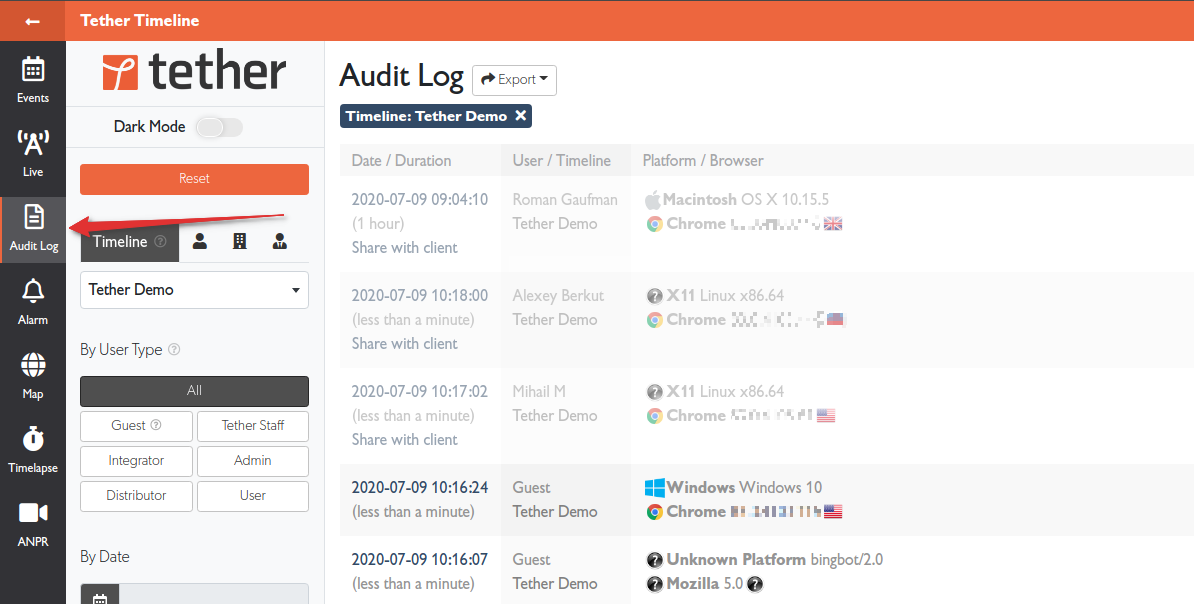
Navigate to Audit Log from the left sidebar.
Filtering the Audit Log
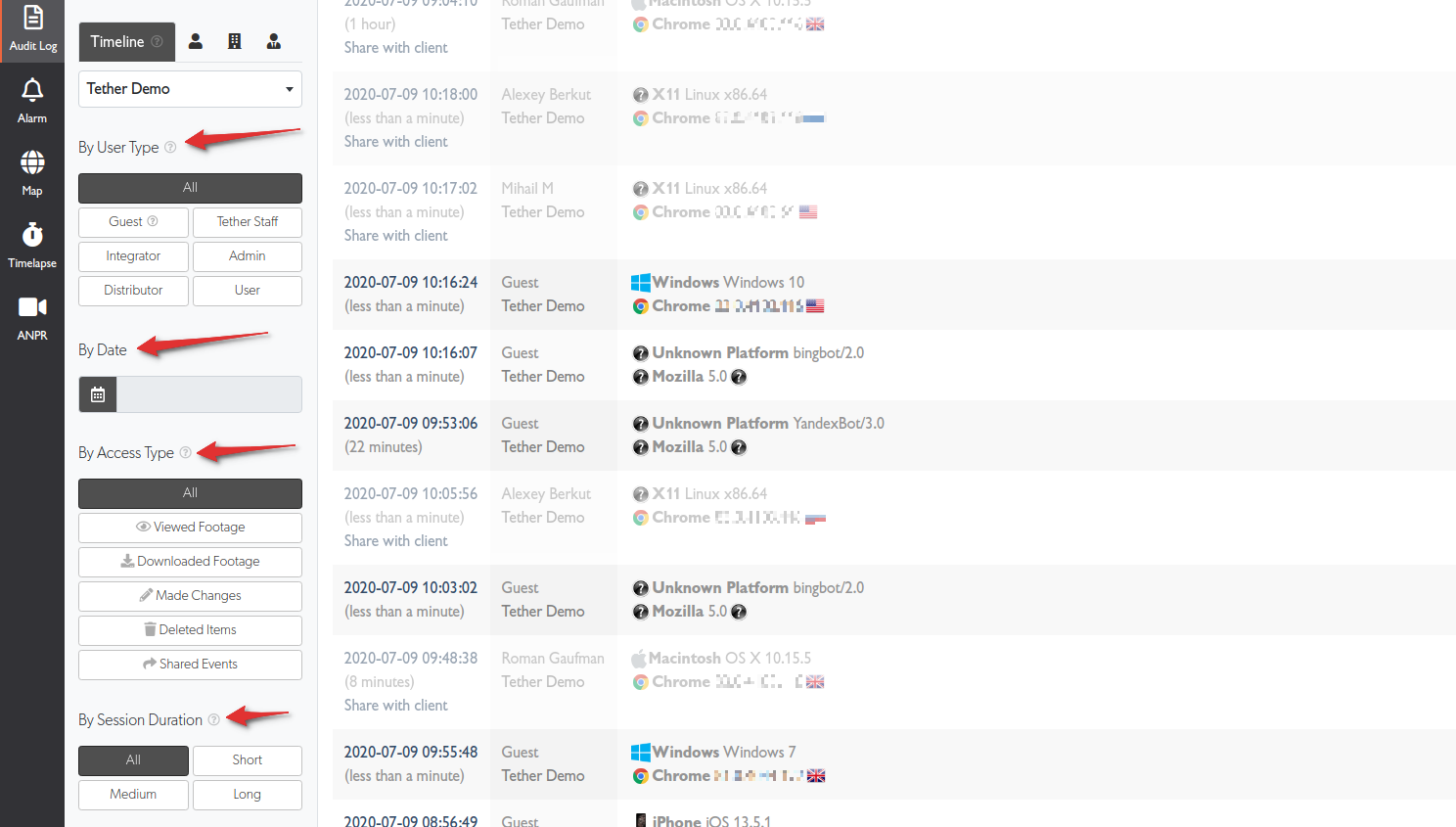
Use the sidebar filters to narrow your search and find specific activity.
Filter by Site
Select All to search across all sites you have permission to access, or choose a specific site.
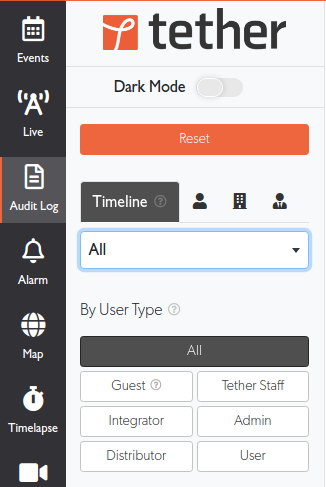
Filter by User Type
Show sessions by specific user roles:
| User Type | Description |
|---|---|
| Guest | Temporary access - e.g., someone who received a shared event link |
| User | Standard user with limited access |
| Admin | Full rights to the system |
| Integrator | The person or company setting up the system |
| Distributor | Partner with access to multiple customer sites |
| Staff | TetherX support staff (when Support Access is enabled) |
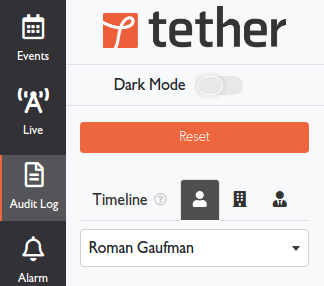
Filter by User
Search for activity by a specific user.
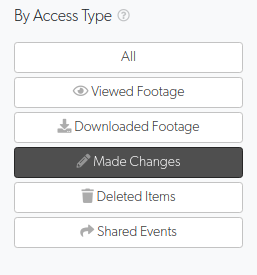
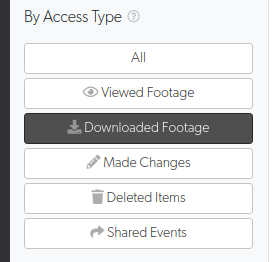
Filter by Access Type
Find specific types of activity:
| Access Type | Description |
|---|---|
| Viewed Footage | Sessions where users viewed live or recorded video |
| Downloaded Footage | Sessions where users downloaded video files |
| Made Changes | Sessions where users edited configuration (cameras, users, etc.) |
| Deleted Items | Sessions where users deleted footage, devices, or users |
| Shared Events | Sessions where users shared events with external parties |
Filter by Session Duration
Filter by how long users were logged in:
- Short - Sessions under 60 seconds
- Medium - Sessions between 1-60 minutes
- Long - Sessions over 1 hour
Filter by Platform
Filter by the device used to access TetherX:
- Laptop / PC - Desktop browsers (shows OS and browser details)
- Tablet / Mobile - Mobile devices (shows device type and browser)
Filter by Date
Select a specific date or date range to narrow results.
Example: Track Engineer Changes
To see all changes made by a specific engineer across all sites:
- Select All under the Site filter
- Select the engineer from the user dropdown
- Click Made Changes under Access Type
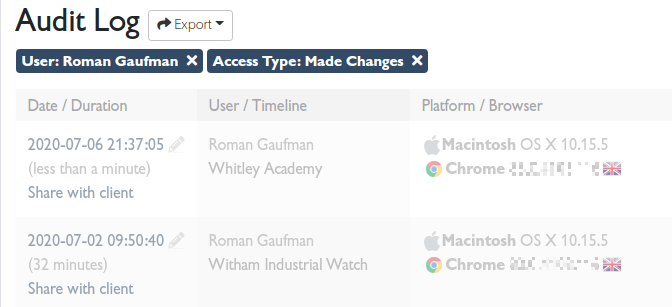
- Click any session to view the detailed activity log
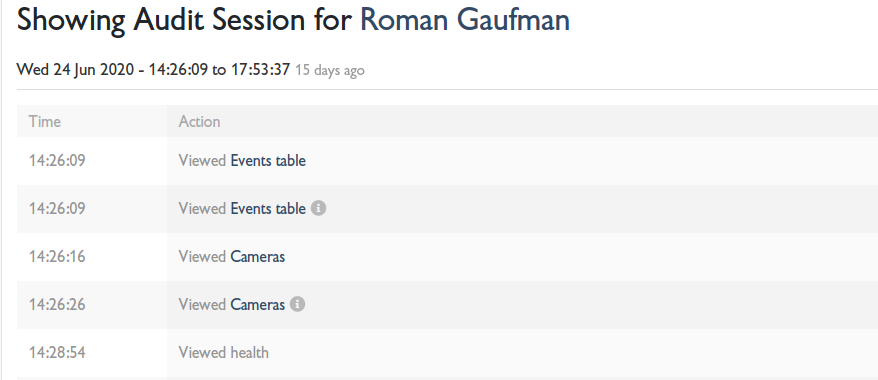
The detail view shows every action with timestamps - pages viewed, settings changed, and devices accessed.
Exporting Data
Export audit data to CSV or Excel for reporting or external analysis.
- Apply your desired filters
- Click the Export button
- Select CSV or XLS
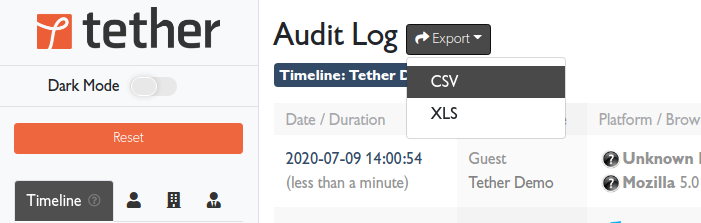
The export includes all data matching your current filters.

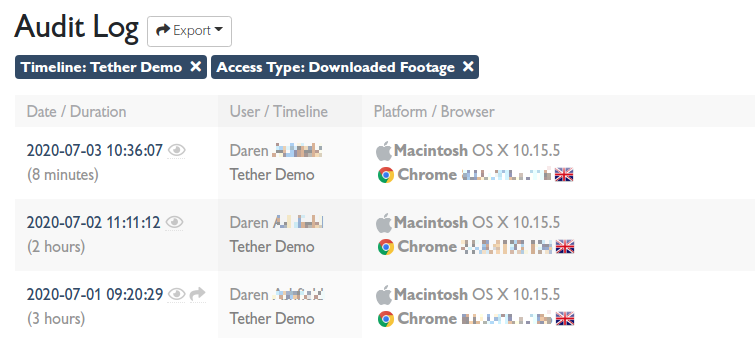
Find Downloaded Footage
To see all sessions where users downloaded footage:
- Click Downloaded Footage under Access Type
- Results show who downloaded footage, when, and from which site
Related Articles
- Account Lockout - What happens after repeated failed sign-in attempts, and what to do if you did not cause one
- Two-Factor Authentication - Add a second factor so a stolen password is not enough on its own
- User Permissions - Configure user access levels
- Events - View and manage security events
- Health Report - System health monitoring
Referenced in: