

Table of Contents
Natural Language Search
Use Find footage on the Events page to describe what you want to see. TetherX turns your description into event filters and shows you a preview before applying them.
You can search the sites, cameras and events your account can access. Object and appearance searches depend on the detections recorded by your cameras and TetherX AI.
Before You Start
- Check that you are on the timeline containing the cameras you want to search. A location outside your account's access is not added to the search.
- Footage and events must still be available within your account's access period. Widening the dates cannot recover recordings that are no longer retained.
- Use the timezone shown in the preview. Phrases such as last night are interpreted using your account's local clock. Timezones explains which clock controls searches and schedules.
- For a colour, hat or kind of animal, the event needs the corresponding recorded AI information. A general person or animal search can help you find older events without those details.
Describe the Footage
- Open Events and select Find footage. On a computer, you can also press ⌘ K on a Mac or Ctrl K on Windows.
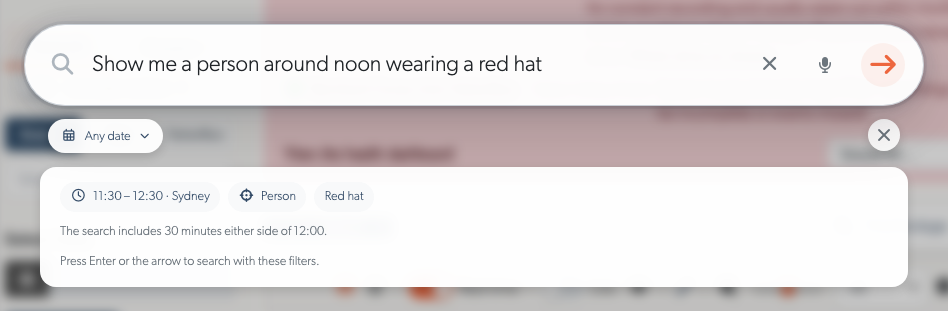
- Type a description, such as “Show me a person around noon wearing a red hat.”
- Press Enter or select the arrow to preview the search.
- Check the dates, time window, locations and detection filters. Edit your description if something needs changing, then preview it again.
- Press Enter or select the arrow once more to apply the filters and open the matching events.
- Review the preview before searching. A red-hat request shows the person detection, the hat colour and the time window it will use.
After applying the search, the filter bar shows the active choices. Use a badge’s cross to clear that criterion, or open the filter sidebar to make further changes. Clearing an appearance badge removes its subject, colours and hat criteria together; the other filters remain selected.
Read the Preview
| Preview Item | What to Check |
|---|---|
| Locations | Expand the location chip to read the selected sites and camera zones. A phrase such as front doors may match several locations. |
| Detections | Check the object or analytic labels. With several detections, the preview says whether all or any may match. An exclusion is labelled Without. |
| Appearance | Check the subject, colours and hat criteria rather than relying on the wording of your original sentence. |
| Dates and times | Check both the date range and daily time window, including the displayed timezone. |
| Explanations | Read any clarification or unsupported request before applying the search. Rephrase the request when a valid preview cannot be prepared. |
All detections means they must be recorded on the same event. Any means one of them is enough. For example, a person and a dog asks for an event containing both; a person or a dog accepts either. This does not establish that the person owns the dog or that the two were beside each other.
Examples to Try
Use names that match your own sites and cameras. You can write a short phrase or a full sentence:
- “Parking.” Find events with the parking detection.
- “Red car, two weeks ago at night.” Combine a car detection, red appearance, a date and an overnight time window.
- “Show me my cat in my back yard at 2am last night.” Find cats at matching back-yard cameras around the requested time.
- “Show me footage at night from all front doors with a vehicle.” Match the front-door locations your account can access and vehicle detections.
- “Show me a person around noon wearing a red hat.” Combine a person detection with appearance filters and a window around noon.
Dogs, cats and birds are searched by kind. A TetherBox running TetherX AI records which animal it saw, so a cat request finds cats. Other species, such as a horse or a fox, are searched together as other animals. Events recorded before a TetherBox reported the kind of animal have none on record: search for animals to include them. Motorcycles and buses work the same way, as kinds of vehicle.
Single times such as “at 2am” and “around noon” produce a surrounding time window. Check its displayed start and end before applying the search. Times use the timezone shown in the preview.
Choose Dates and Times
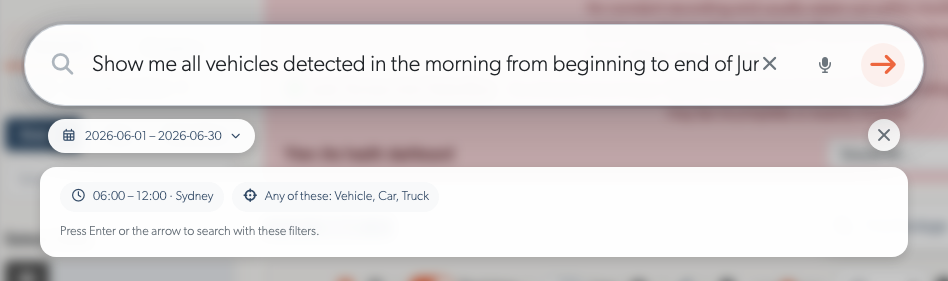
A date range and a time window answer different questions. For example, “Show me all vehicles detected in the morning from beginning to end of June” selects the whole month, then limits the search to the morning window on those dates. It does not mean one continuous interval from the first morning to the last morning.
Check both parts. The date selection shows the beginning and end of June; the separate time chip shows the morning hours. Include a year in your description when it matters.
Override the dates without rewriting your description. Open the date chip below the search box and set From and To. Use the same date at both ends for one day. Today, Yesterday and Clear provide quick choices; changing the dates keeps the other interpreted filters.
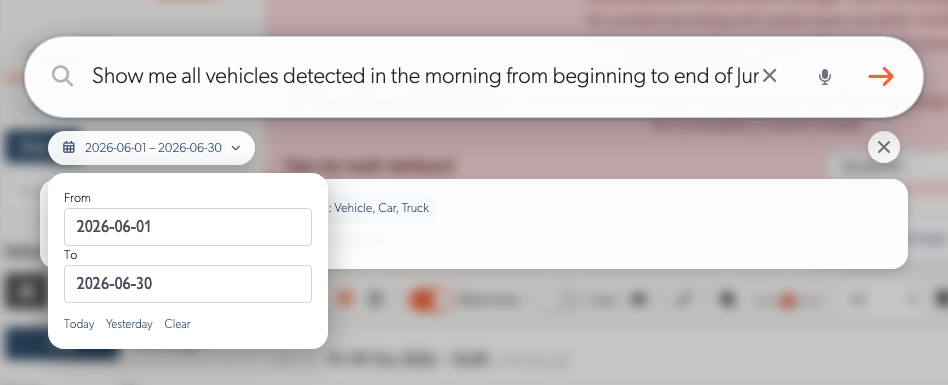
Any date means there is no extra calendar restriction from this search. Your account’s access period and the footage still available on the system continue to apply. Accounts with a fixed footage-access period may not have the date override controls.
Use or Hide Examples
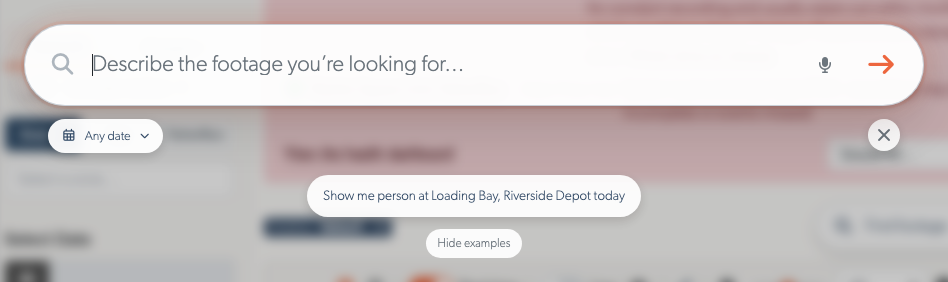
When the search box is empty, TetherX may suggest examples using your accessible locations and analytics those cameras have recorded. Select an example to put it in the box, then edit or preview it as usual. Examples illustrate useful searches; they do not guarantee matching footage for today.
- Keep the box simple. Select Hide examples to turn suggestions off in this browser. Select Show examples in the empty search box to turn them back on. Examples disappear while you type or review a preview. When no examples are available, there is no hide control.
Dictate a Search
Select the microphone in the search box and allow microphone access if your browser asks. Speak your description, then review the text before previewing or applying the search. Select the microphone again to stop listening.
Dictation depends on your browser’s speech-recognition support and may process speech online. If microphone access is denied, allow it in the browser’s site settings or type your search. If the browser does not support this feature, use your keyboard’s own dictation control or type normally. The search button cannot open the operating system’s dictation panel for you.
Refine a Search
If a location is not recognised, try the site or camera name shown in TetherX. If the search asks for clarification, simplify the description or adjust the relevant filter in the sidebar.
Some descriptions go beyond the available filters, such as a specific vehicle make or model, identifying a named person, or a relationship between two objects such as “next to.” Review any explanation before continuing. Use supported details such as object type, recorded colours, location and time to narrow the events, then review the footage itself.
If no events match, widen the date or time window, or remove one criterion at a time. A natural-language request searches recorded event information; it does not create detections that your cameras did not record.
Troubleshooting
| What Happens | What to Try |
|---|---|
| The preview chooses the wrong camera | Use the exact site or camera name shown in TetherX, then expand Locations to check the selection. |
| The time is wrong | Check your account timezone and the preview's time window. Use an explicit date and year when relative wording is ambiguous. |
| A known incident is missing | First search the camera and date with fewer criteria. Check that an event was recorded and remains accessible, then add object and appearance filters one at a time. |
| A cat or colour search misses older footage | Search for animals or the general object type; older events may not contain kind or appearance information. |
| The search requests clarification | Rephrase with the location, object and time you need. Remove unsupported details such as a named person or vehicle model. |
| The date controls are absent | Your account may have a fixed footage-access period. Search within the period your account permits. |
| Dictation does not start | Check browser microphone permission and speech-recognition support, or type the description. |
Tip: Begin with a location and date if you are unsure which detections were recorded. Add detail after confirming that the expected events are present.
Related Articles
- Events - Review, flag, share and download footage.
- TetherX AI - Object, appearance and audio analytics.
- Events View Menu - Change the event display and live updates.
Referenced in: