

Table of Contents
Q3 2026 Release Notes
July - September 2026
Live View
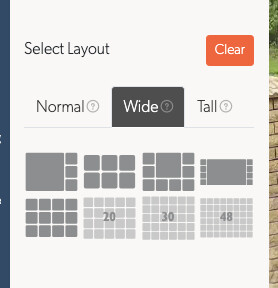
More Layouts for Wide and Portrait Screens: The layout picker has tabs for a normal monitor, a wide screen and a phone or tablet held upright. Each picture in the picker is drawn from the layout itself, so it shows exactly the wall it opens
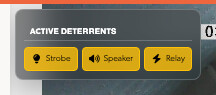
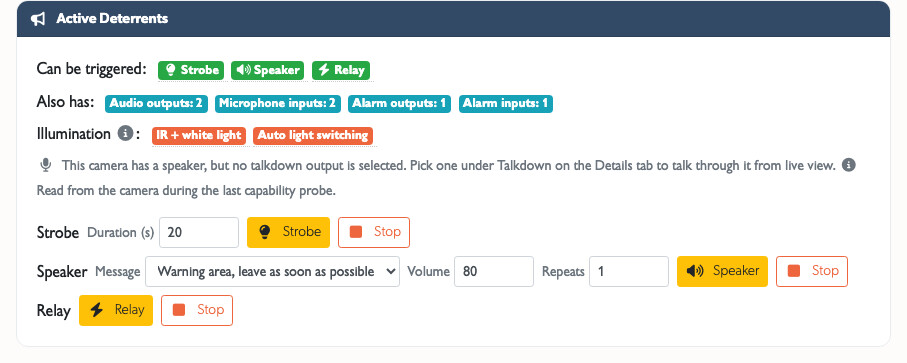
Camera Deterrents: Trigger a camera's siren, warning speaker or strobe light from the tile you are watching. First vendor supported: TVT, including its LTS, InVid, Avycon and Provision-ISR rebadges
Talkdown lists the messages recorded for that camera's own TetherBox, so an operator working across sites no longer sees an empty strip
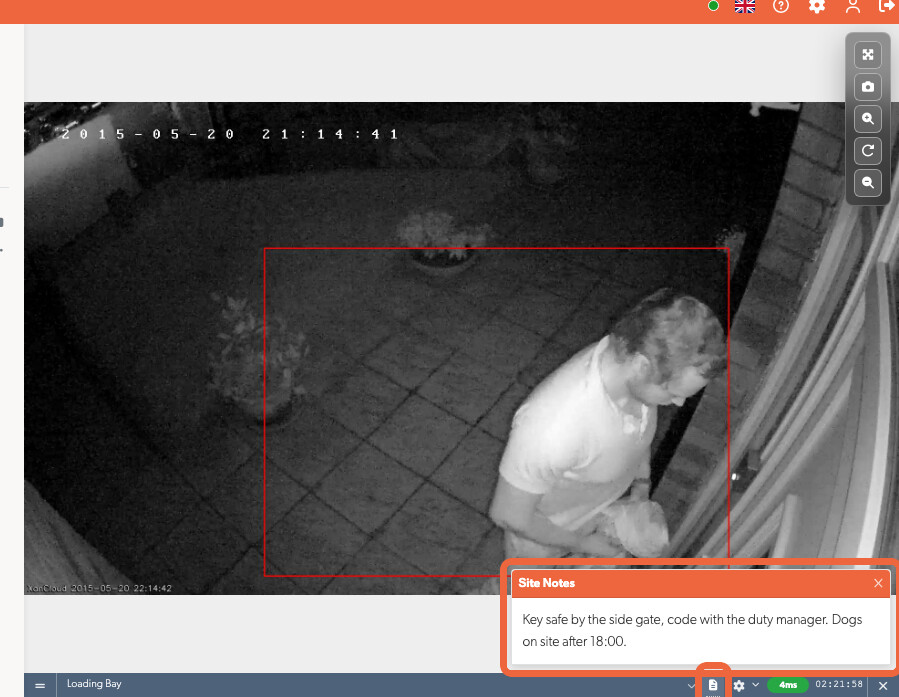
Site Notes: Read the key safe, the dog or the number to ring beside the camera name, without leaving the wall
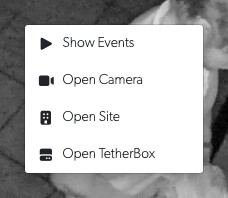
Right-Click a Camera to open its events, the camera, its site or its TetherBox in a new tab, so the wall you are watching keeps running. The camera lists and the camera page have the same menu
Touch Controls and Fullscreen in Live View: Tap a tile to show or hide its controls, drag to inspect a zoomed picture and pinch to zoom images or video. A double tap opens or closes fullscreen without briefly showing the controls. Live View keeps the last frame in every tile while it resumes after fullscreen, including on iPhone and iPad
Presets
Save a Search on the Events Page: Name the filters you are using and save them as a preset, then bring that search back with one click. Presets are yours alone or shared with everyone on the timeline
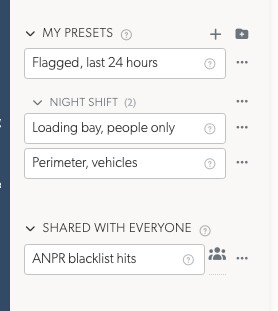
Live View and Timelapse Presets Work the Same Way: A saved wall and a saved timelapse sit on their own tab, in the same 2 lists, with the same sharing. A shared wall shows each person only the cameras their account may see
Saved Walls Keep Your Chosen View: When you deliberately zoom or move a camera picture, saving the wall keeps that view. A wall that only uses its normal fit or fill setting stays automatic
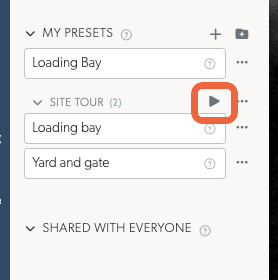
Cycle a Group of Saved Walls: File the walls you want to watch under one heading in Live View, then press play on that heading. You see each of them in turn, in the order you listed them, and the heading's menu sets how long each one stays up. Press the same button to stop
Event Searching
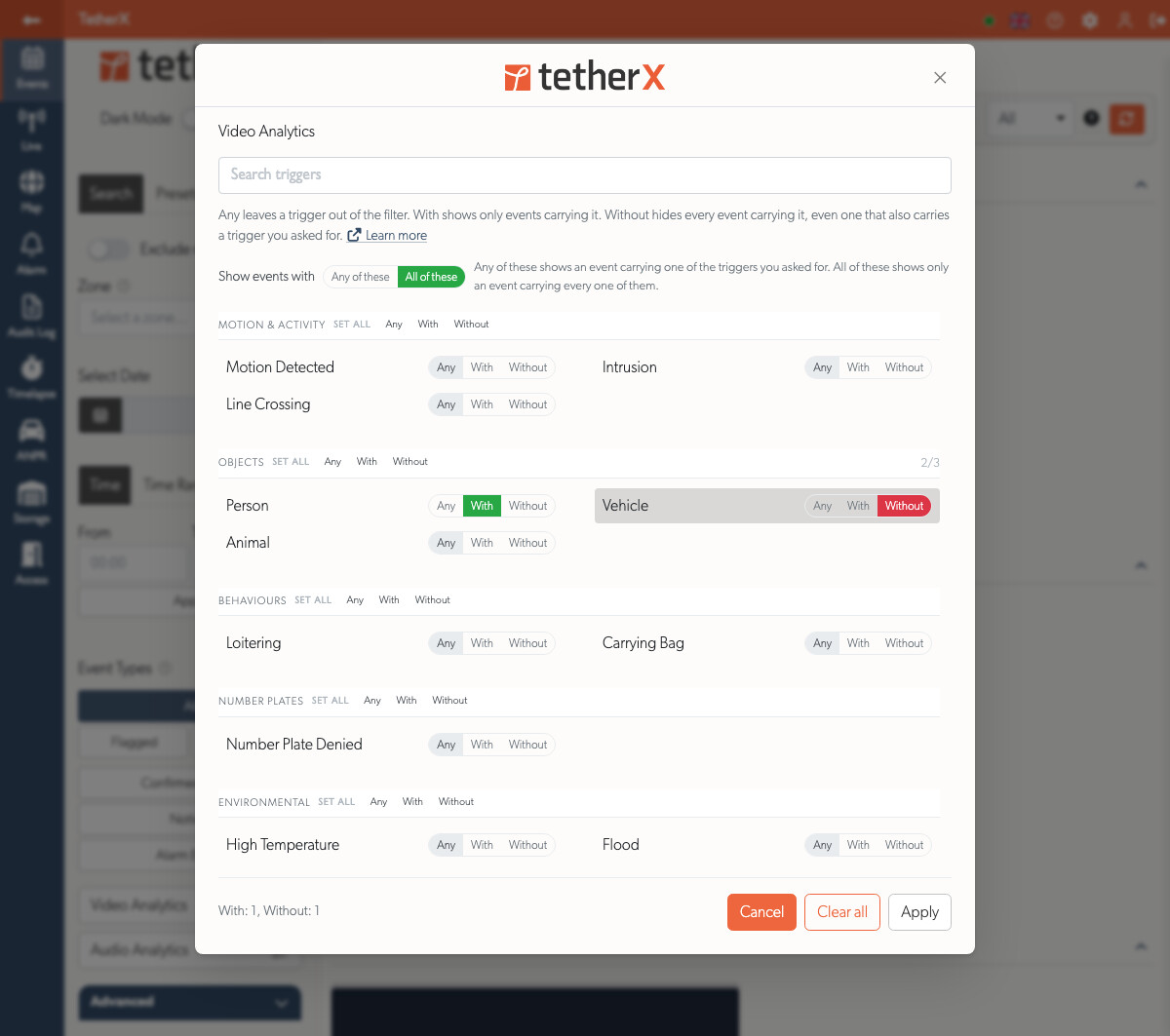
Search by Video Analytics in a Full Window: A full-screen picker lists every trigger under its category, with search and a control that sets a whole category at once. Each trigger can be included or excluded, so you can ask for people and not vehicles. The list is what your own cameras have sent, rather than every trigger the platform can read
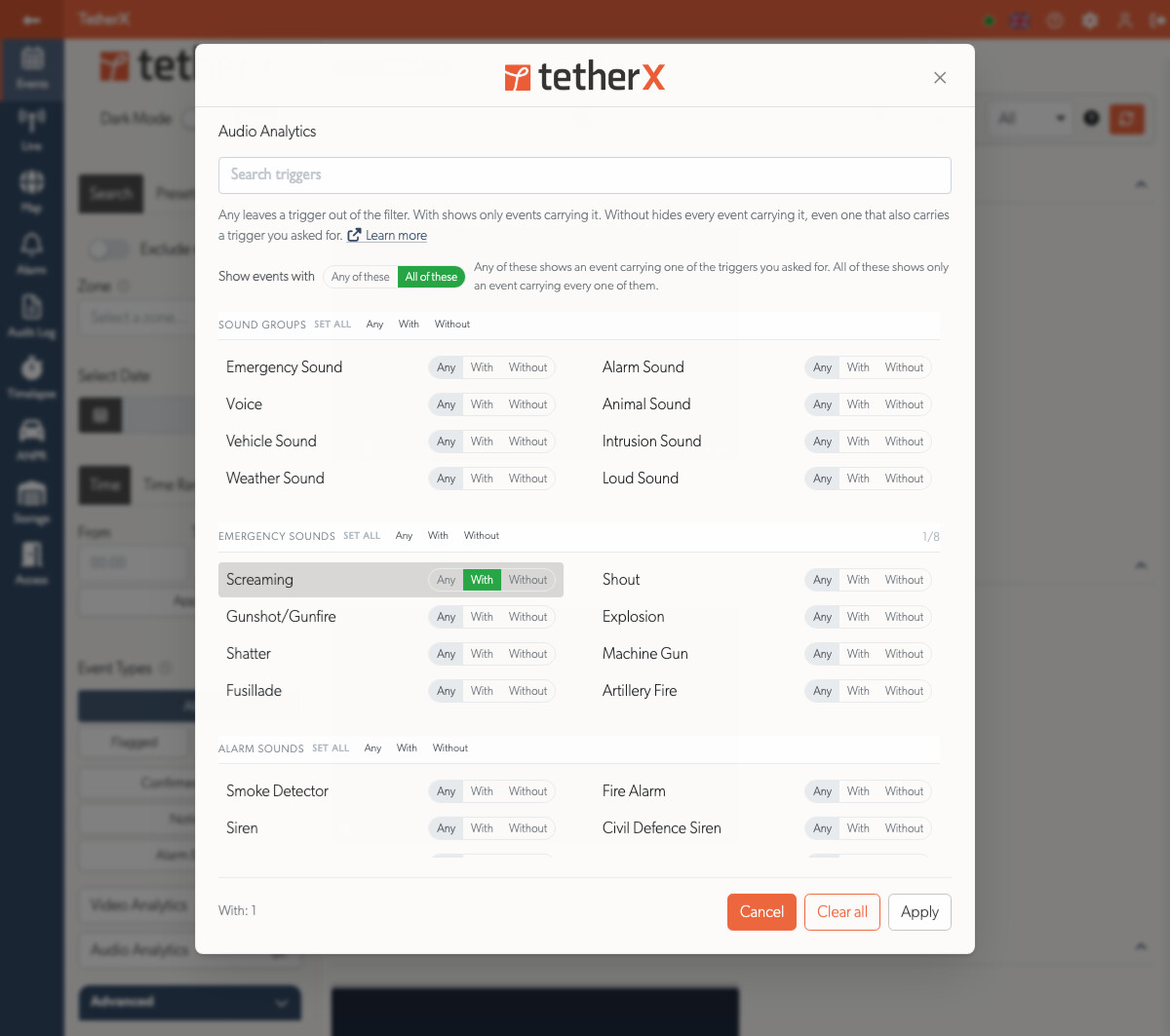
Search by Audio Analytics the Same Way: Every sound the platform can recognise, under 8 groups, so you can ask for a smoke alarm and not a car horn. This one offers the whole catalogue whether or not a camera has heard it yet
Filter Events by How Long They Lasted: Drag a duration range in the new Advanced section, instead of picking one of 4 fixed lengths
Filter Events by Where the Footage Is Kept: Recording Storage, in the Advanced section, narrows the list to events backed up to the cloud, or to the ones whose footage is still only on the TetherBox. Any is the default
Export an Event as a PDF Report: Export Report builds a document for a client or the police. It shows the site, the camera, the times, what triggered the event, who handled it, every note, the number plates it captured and the full audit trail. The event itself is in time-lapse images, under your own branding. A progress bar follows the build and the download appears in the same window. A copy stays under Exports
Camera Management
Deterrent Settings on the Camera API Tab: Set the strobe duration, the warning to play, its volume and which relay fires, from what the camera itself reported rather than from a model name
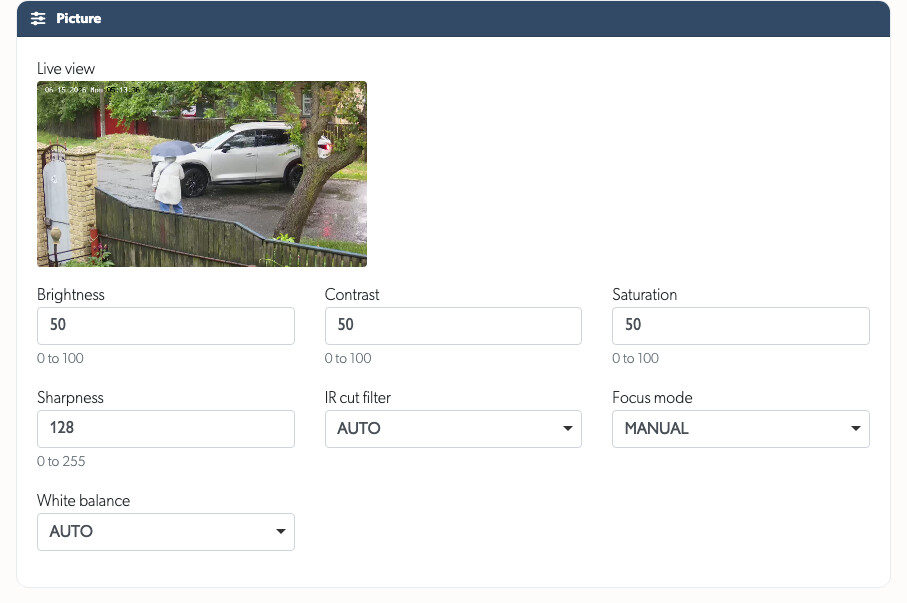
Camera Picture Controls: Adjust brightness, contrast, saturation, sharpness, the infrared cut filter, focus mode and white balance from the Camera API Tab, using each camera's own limits
Cameras List and API Tab: The list is sorted newest first and gains an Audio column, in the exports too. Device Information gives one row per fact, keeping both readings where a camera's native and ONVIF answers differ
Related Zones: Name the nearby zones covering the same approach as this camera, on the camera page. Open Live on an event then offers them as one wall, so an operator opens what stands beside the camera that fired rather than every camera on the site

API Tab on an IP Device: Read every channel, disk and capability the device reported, on the device's own page. The camera page shows the same data cut down to that camera's channel
Devices Export Includes What Each Device Reported: Export the devices list as CSV or Excel, with the manufacturer, model, firmware version, serial number, API state and ports
A Recorder With a Failed Disk Is Flagged: A device reporting a broken disk shows on the Devices page, in the export, on the Health page and in the Health Report, monitored or not
Picture Controls on a Recorder Channel: A Hikvision DVR reports contrast on a 0 to 255 scale while permitting 0 to 100, so the channel showed a 0 to 100 box holding 138. Each control now takes its range from the recorder's own settings, and where the readings disagree the control accepts any value and names both
Camera bulk edit chooses notification triggers in the picker the camera's own Notifications tab uses, with its search, per-category select-all and full-height list
Product Photos for 24 More Models: The cameras and devices lists show a photo of the model rather than 2 letters. This adds the TVT and Lumana ranges and 11 more Hikvision recorders. A camera whose photo arrived after May still showed letters, and 1 Hikvision bullet was showing the manufacturer's "page not found" artwork. Both are fixed
TetherBox Management
Move a TetherBox to Another Timeline from the Actions section of its page, taking its site, cameras, zones, devices, alarms, access control, event history and recorded footage with it. This previously meant a factory reset. Cloud footage is the exception, and you see what will be deleted before you confirm. See the new Timelines page
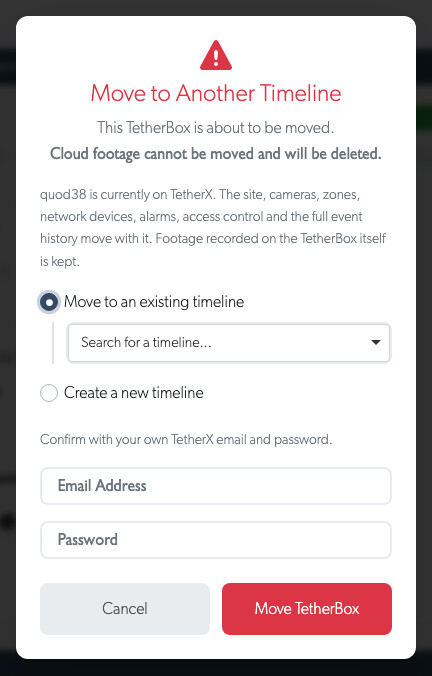
Administrators Can Maintain Their Own Hardware: Reboot, shut down, factory reset and move a TetherBox, format its drives and manage its USB devices. These were Integrator actions, so an owner who parted company with their installer could not maintain their own equipment
Show a Plate on a C-Power LED Sign: A driver at the barrier reads their own registration off the sign. Choose "C-Power (LED Screen Connect)" as the display type on a TetherBox, give the board's address and port, and each plate the ANPR camera reads goes to the sign. Set the panel's width and height in pixels beside the colour and effect: the board places text inside the size you give it, so a size meant for a wider panel pushes the plate off the end of the one on the wall. Read the size from the sign software's screen setup, or count the modules, since the board does not report it
Test Display Tests the Sign You Configured: The button sent the older Spectra frame whichever display type a unit had, and reported success whether or not a board answered. It now sends what the TetherBox sends in service, and a C-Power board's own acknowledgement decides the result
Run TetherBox as a Virtual Machine on a spare PC or server. See the new Running TetherBox in VirtualBox guide
Update Progress on the TetherBox List: A unit part-way through an update says so, and for how long, instead of looking like a fault
Clearer Factory Reset Progress: Starting a factory reset now confirms that the request is under way. While it runs, the TetherBox page shows a disabled reset control with the expected completion time, so the same reset cannot be requested again
The Map Keeps Itself Up To Date: A unit going offline, coming back or picking up a camera fault changes its pin on the map as it happens, the way the TetherBox list already did. A callout you have open updates as you read it
The Whole World on One Map, and Buttons to Zoom With: A fleet spread across continents fits in one view now, so you no longer drag the map from one to the other to count your units. The map also carries zoom in, zoom out, and a button that puts every unit back on the screen after you have zoomed into one site
Long-Silent Units Can Be Put Back on the Map: The map has always left off a unit nothing has heard from in six months, and said nothing about it, so a unit that died months ago looked as though it had never existed. The filter panel now has a Last Heartbeat choice: Recently, which is what the map opens with, or All, which puts every unit back on it however long ago it was last heard from
Historical Drive Readings Are Marked: An unplugged drive's SMART Health card is tinted amber and says when that drive was last seen, so an old figure is never read as today's
See Which Cameras Are Backed Up from the TetherBox Page: The Cameras tab has a Subscriptions column. It shows which cameras record to the cloud, which keep images only and which are not backed up, so you no longer open each camera in turn. Sort on that column to group the unprotected cameras together
Health Report Priorities: A TetherBox without an appropriate recording drive is now flagged as critical, because no footage is being kept at all. The reports also cover footage gaps over 7 days as well as 24 hours
A Failing Recorder Disk Is Flagged: A DVR or NVR reporting a bad disk is marked on its device page and on the page of every camera recording to it. It also appears on the Health page and in the Health Report
Health Reports Leave Out Unactivated TetherBoxes: A TetherBox waiting to be installed at a site does not appear as an offline customer system in the Health Report
Recorders with a Failed Disk on the Health Dashboard: The Summary counts them beside the offline and camera figures, and the With failed storage table names the disk in the recorder's own words. The table is now open to anyone who has the IP Devices page, since the Health Report already reports these recorders by email
Disk Health Is Read Over ONVIF Too: Hikvision and Dahua recorders answer over their own APIs. Any other make that publishes disk health over ONVIF is asked that way, which covers 724 more devices. A recorder that reports no disk at all is left blank
How Much Disk a Recorder Has, and How Far Back Its Footage Goes: The API tab of a camera and of a device shows each bay's size, how full it is, and the oldest footage still held on every channel. Read together they catch what a disk status cannot: one DVR held 12 days with 84% of its disk free, and still reported its disk healthy
Storage Column on the Cameras and Devices Lists: Each row shows the recorder's disk size, how full it is and the oldest footage it still holds, plus a red warning icon whose tooltip names the fault. A channel reads the recorder it records to, so one DVR looks the same on both lists. The same figures are in the CSV and Excel exports
Jump Between Sections on the API Tab: The tab opens with a list of the sections on it, so you can go straight to Storage or PTZ instead of scrolling. Device Information now sits above the stream profiles, and reads make, model, firmware and serial first, then what kind of box it is and what it is built from
How Far Back a Dahua Recorder's Footage Goes: A Dahua DVR or NVR now reports the oldest footage it still holds on each channel, beside its disk size. One XVR held 352 days on all 8 channels. Its disk read as full and healthy, which is all any page could show before
Retention Is Read Over ONVIF Too: A recorder of any other make that publishes the ONVIF search service is asked how far back its footage goes. A device answering placeholder dates rather than real ones is reported as not answering, so no page ever shows retention nobody measured
Account Management
Automatic Account Lockout: The account is locked after 10 wrong passwords in 15 minutes, or 5 wrong verification codes. The lock lifts on its own, and the account holder is emailed. See Account Lockout
Edit or Delete a Whole Selection: Tick rows on the Users, Sites, zone, Devices, alarm panel or access control list, and edit or delete them together. Each field stays untouched until you tick it, so you can change 2 settings across 40 records
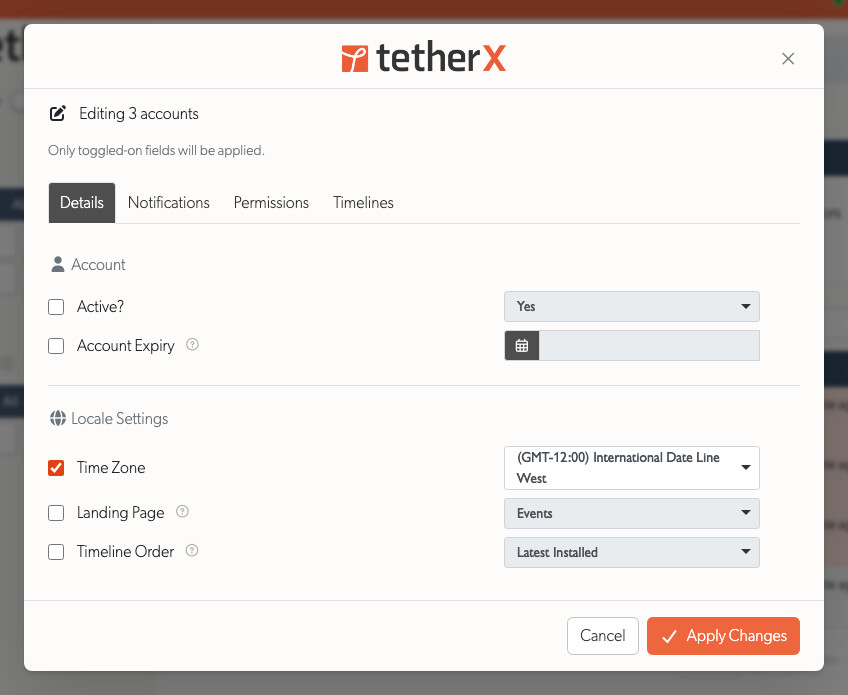
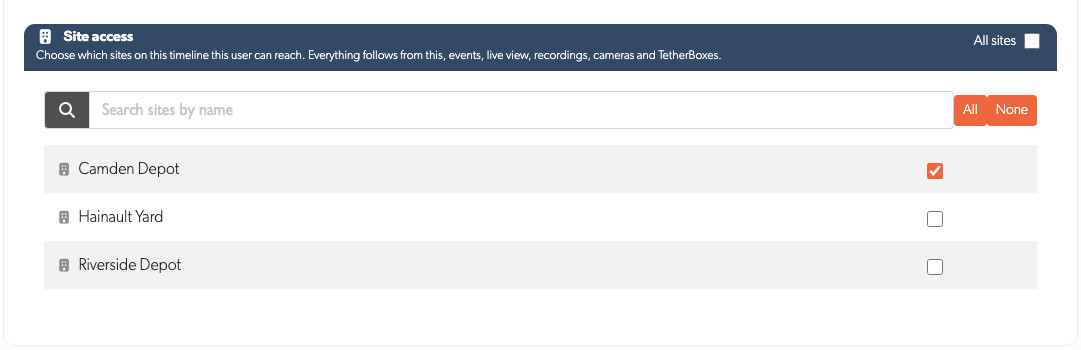
Limit a Person to Particular Sites: An integrator who looks after one depot can be held to that depot rather than to every site on the timeline. Turn off All sites on the Permissions tab and tick the sites that person should reach. Events, live view, recordings, cameras, TetherBoxes, alarms and number plates all follow that choice, including pages opened from a direct address
Notifications Tab on Your Profile: Every user can change their own alerts, which previously sat inside a tab only administrators, integrators and staff could open
Send Yourself a Test Notification: Send test is beside Delivery Method on the Notifications tab of your own profile, and offers an event, a health and an alarm notification. Each one is the real thing, worded exactly as the notification it stands for, and sent on the same channel: the alarm test arrives as an alarm activation, the health test as a TetherBox losing its connection, and the event test as an event shared with you. So you can check all three arrive, and hear the sound and feel the buzz each plays, without waiting for an alarm. If nothing could arrive, the page says why: notifications paused, delivery set to email only, or no phone signed in to the app
Clearer Push Notifications: Every alert now opens with an icon for what happened, an alarm, an analytic, a unit going offline or coming back, and reads as a sentence rather than in the panel's own shorthand. An alarm says "Alarm activated" and names the site and timeline, instead of repeating internal state flags
Sign in with a Passkey: Sign in with your device's fingerprint reader, face recognition or screen lock instead of your password. Add a passkey on the Security section of your own account, and it is offered in the email box the next time you sign in. A passkey replaces your password only, so an account using an authenticator app is still asked for its code. A passkey works on the address you created it on, and works in the iOS app. See Passkeys and Signing In
TetherX Offers You a Passkey After You Sign In, once, and only on a device that has a fingerprint reader, face recognition or a screen lock to offer. "Not now" puts it away for a month and "Don't ask me again" ends it for good, with a link to the instructions either way
Sign in to the iOS App with Google, including passkeys
Sign in with Microsoft: Sign in with a work, school or personal Microsoft account whose email address matches your existing TetherX account. The sign-in page no longer keeps a timeline identifier before an account selects one
Call a Contact on WhatsApp: Turn on "Call this mobile on WhatsApp" beside a person's mobile number, and clicking that number in the operator console starts a WhatsApp call rather than a normal phone call. The number needs its country code
A Reseller's Colours Reach the Whole App: A brand's two colours painted the top menu, the footer and a few buttons, and everything else stayed TetherX orange and navy. The headings on every card and table, the switches, the recording seekbar, the slider handles, the chosen view icon, the tick boxes and the rows you pick out now carry the brand's own colours too, in both the light and the dark theme. A colour the brand form will not recognise falls back to the TetherX one rather than being painted
Control Room Integrations
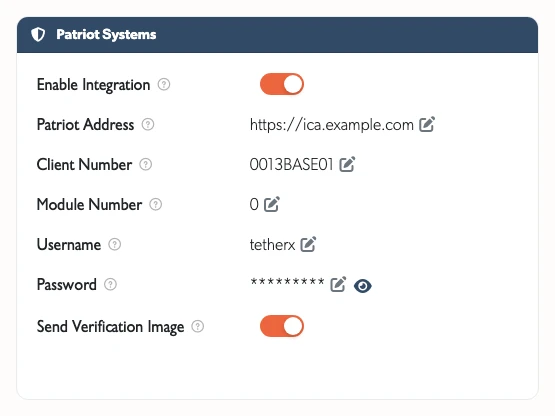
Patriot Systems: Sites can report to a Patriot control room directly instead of by email. Patriot confirms each alarm as it records it, so an alarm that cannot be delivered is retried and reported rather than assumed to have arrived. Each alarm carries the camera it came from, the detection as its own event type, the site position and a snapshot of the moment, and each camera reports under a number the control room can name. Set it up on the new Patriot Systems tab of a site
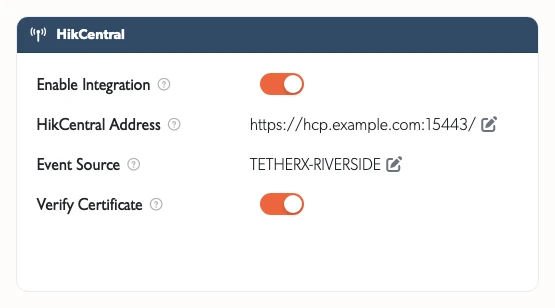
HikCentral: Sites can raise alarms directly in a HikCentral control room instead of emailing them. Each detection arrives as a generic event their own rule turns into an operator alarm, with a priority, a pop-up and the camera it came from, so the operator opens live or recorded video in one click. HikCentral cannot receive verification images and confirms only that the alarm reached it, so a site that needs the pictures keeps the IMMIX email running alongside. Set it up on the new HikCentral tab of a site
Alarm panels can report in Contact ID, as well as SIA, to the same address and the same REST endpoint. A panel set to report Contact ID over DC-09 needs its account number to match the Virtual alarm's Transmitter ID and nothing else: fire, panic, duress, burglary, tamper, gas, water leak and medical arrive as the alarms they already were, and a restore clears the condition it raised. See Alarm Signal Receiving
Panel state reports appear on Events: SIA and Texecom panels now add a separate event when the panel is armed or disarmed, and panel online or offline reports appear there too. Map the panel row to the camera watching the keypad to file it in that camera's zone, or leave it unmapped to show it against the site
One Control Rooms tab on a site, with IMMIX, Patriot Systems and HikCentral inside it, instead of a tab each
IMMIX settings are edited in place on the site page, one field at a time. It is now named IMMIX, because that and HikCentral are what the email integration is used for: nothing is set up differently, and the Sentinel name has come off the screen
Each control room platform has its own help article: IMMIX Integration, CONXTD Integration and Patriot Systems Integration, with Control Room Software Integration left as the page that compares them and covers live video
The Control Rooms page has a timeline, site and state filter, so an account holding several customers can reach any of them rather than only the one it opens on. It opens on the cameras that are ready, meaning the ones with a URL your control room can use right now: a camera that is offline, or answering while its stream fails, has an address that plays nothing, and All shows those with the reason. The Unavailable count always covers the whole site, filter or no filter. Each row shows its site, TetherBox, state and feed type, and Copy All takes every ready URL at once
API Changes
The full interactive reference lives under Developers.
Deterrents on the public API: list what a zone's camera has, trigger a siren, speaker or strobe, and read back whether it is running. A camera without the hardware, a firmware that refuses and an offline TetherBox each return an error, so an integration cannot record a trigger that never happened
SIA alarm errors name the segment they rejected, such as "The area segment riXX is not valid. Expected ri followed by a two-digit area, such as ri01". Every malformed message had returned the same sentence, so finding the mistake meant guessing
Malformed requests answer 4xx instead of 500 across the
/api/v3/endpointsSIA documentation rewritten, covering the permitted characters per segment, the Virtual alarm and Transmitter ID you need first, and JSON bodies. Every published example is checked against the parser
Improvements
Hik-Pro Connect Account Setup: Creating an account returns to the account list, while a form that needs correction keeps its errors on screen
Tell Us Whether a Help Article Helped: Every article now ends with a thumbs up and a thumbs down, and the tally of what other readers said. Press one and the answer saves in place; press the other and it changes. A thumbs down asks for a comment saying what was missing, and points to support for anyone who needs an answer straight away
A Clearer Cloud Quote Tool: Choose a cloud backup activity level, then set retention and quality beside a live price and copyable SKU. Time-lapse is optional in Advanced and starts off for new quotes; number plate storage works independently. Partner prices and discounts are highlighted, and customer markup opens from the summary. The floating price matches the list price in the partner quote summary. The same controls are available on each camera's Cloud Backup tab. Contextual help explains cloud backup and alarm integration. A 0% markup keeps the customer quote at list price
Cloud Cancellation Confirmation: Manually cancelling a camera cloud subscription emails its notification recipients and support with the scheduled end date and a link to review the plan. Repeating the same cancellation does not send duplicate messages
Cloud Price Precision: Subscription prices are saved to two decimal places, including when analytics charges are added
Longer Cloud Retention: Two-year retention uses 1.5 times the one-year retention rate, and six-year retention uses 3 times, with the usual price rounding. The two-year rate also applies to vehicle number plate storage
Prices in Your Local Currency: Canadian domains show prices in Canadian dollars, Australian domains show Australian dollars, and Indian domains show Indian rupees. Other domains continue to show pounds sterling
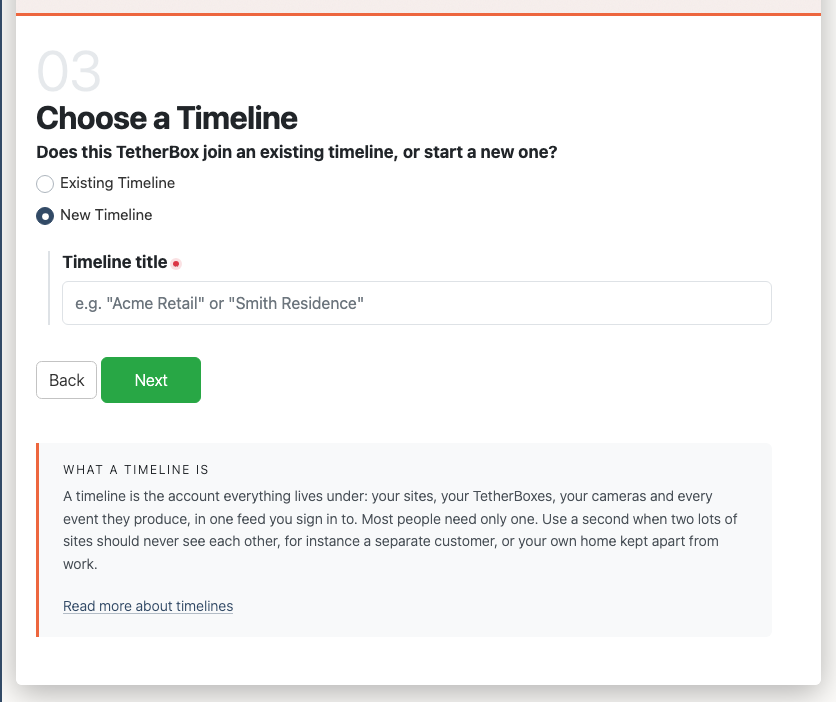
Redesigned Activation: One card per step, a progress bar, and a panel naming the TetherBox you are activating with its live status. Your answers survive a validation error
Address Search on Every Address Field: Type a street, town or building name, pick the real place, and the address, town, region, postcode and country fill in
Site Contact Details: Keep a What3words address, email address and contact number on the site page, alongside its street address and map position
Country Picker on Every Phone Number: Type
07911 123456and the platform stores+447911123456. A number that cannot exist is refused while you are still in the field, rather than found unreachable laterConsistent Forms: A required field has a small red dot at the end of its label, in place of an asterisk that never appeared beside a tickbox
One Layout for Recordings and Events: The pages adapt to the screen instead of switching between mobile and desktop versions. Turn a phone to landscape and the video fills the screen
Faster Scrubbing: The recording scrub bar loads preview thumbnails straight away, so you can scrub close to the right spot on a slow connection
Clearer Event Thumbnails: Every status badge is a white symbol on a coloured disc, red for a fault and green or blue for the plate and visitor badges
Site Contacts in the operator console: Send Report, Escalate and Call open with the people who look after that site, instead of everyone on the timeline
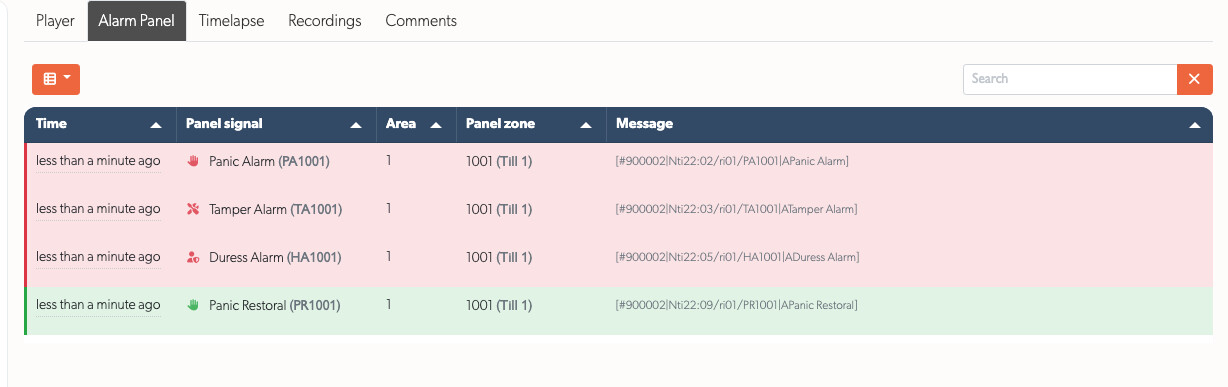
Every Message an Alarm Panel Reported About One Incident: A panel sends a panic, then a tamper, then the restore. All three attach to the same event now. A new Alarm Panel tab lists them in the order they arrived. Red marks a raised condition, green a cleared one, and each row has the icon that trigger has everywhere else
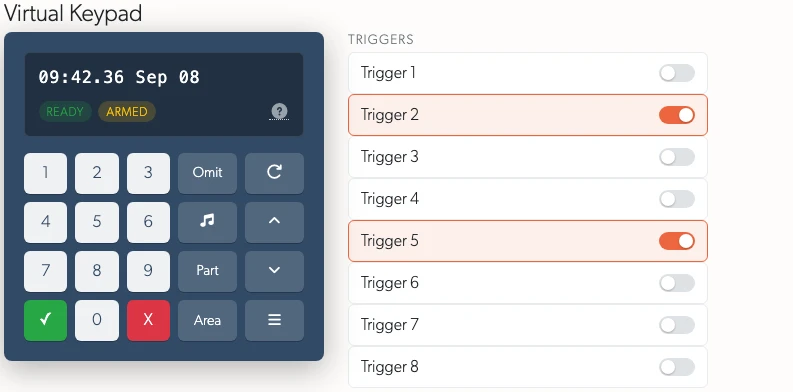
A Clearer Texecom Keypad: The display, whether the panel is ready, armed or in alarm, and the keys under it. The panel's outputs are switches beside the keypad. Each one shows what it is driving as soon as you open the page, instead of showing nothing until you press something. Every key works from the keyboard as well as the mouse
The SIA Codes Tab on an Alarm Reads as a Table: It listed a raw string and a timestamp, so the signal, the area and the zone were yours to pick out by eye. Those are columns now, in the same sortable, searchable table the Alarm Panel tab renders, newest first
Clearer Alert and Reset Emails: An offline alert now includes a Notification Settings button and lists everyone it is sent to. The factory reset and activation emails set the facts out as a table of links, and include the reason given
Every Export Column Is Documented: A new Exporting IP Devices to Excel or CSV page says what each column of the Devices export holds, and Exporting Camera Data and Snapshots does the same for Cameras. The export confirmation and the export email include a link to the page
IP Location Panel: The panel is named for what it reads. The country and city come from the address the unit connects from, usually your provider's exchange rather than the site itself
Charts read the same way wherever you meet them, because one engine draws them all and takes its colours from the page around it
The health banner opens and closes without moving the page under you, where it used to appear at full height and push the events list down as you were reading
Fields and dropdowns read alike, on size, weight, colour, the focus ring, and how each looks when you may not change it
The date and time picker follows the dark theme, where the calendar had opened in its own light colours on a dark page
Elsewhere: The Site page has an IMMIX & Sentinel tab, editable in place. The TetherBox page has an Events button, and the TetherBox list a Created column. The ANPR plates-per-day chart draws a line per direction of travel. Every event-download ZIP includes a report of who requested it. The audit sessions page loads faster
Redesigned Map Callouts: What a pin opens now reads as a panel: the unit's name in a coloured heading with the close cross, its details laid out in two columns rather than a table, and the buttons to the timeline and the unit fixed at the foot where they stay in reach. On a phone the map slides the pin you pressed to the bottom of the screen and opens the panel above it, so it no longer hangs off the edge
Maps in Every Browser: A machine whose browser will not do 3D graphics, which is common on remote desktops and where a policy switches it off, used to get a blank rectangle where the map should be. Those browsers now draw the same map, the same pins and the same callouts a different way
Updated Documentation: New Timelines, Getting Started and Where to Run the TetherBox Software pages, and refreshed Pre-Flight Checklist, Troubleshooting Kit, Monitoring Station Operator Guide and Two-Factor Authentication
The Current Year in Every Copyright Line: The partner welcome pack email showed a range starting in 2007, and a new brand's copyright line spelled the company "TetherX Limited" where the rest of the platform says "TetherX Ltd". Both now read the year off the clock and spell the company one way
Bug Fixes
Fixed an event thumbnail opening as a full page on a desktop. An event now opens in the window over the list, where it leaves your search and place in the queue intact. Phone-sized windows still open the event full-screen.
Fixed opening and closing an alarm panel changing its state without recording the action beside its mapped camera. The event now names whether the panel was armed or disarmed and carries the panel report.
Fixed 11 of the 63 sounds a camera can recognise reaching an event unnamed. A smoke alarm, a gunshot, footsteps and a car horn are 4 of them. Each arrives named the way the camera's audio detector spells it, and the platform recognised a different spelling, so the event showed its broad group alone. Picking one of the 11 under Notifications could not alert you, and searching events for one found nothing
Fixed an alarm panel's fire, panic, duress and medical signals emailing nobody.
AFire Alarmreached everyone. A plainAFire, the same signal, reached nobody. The 2-letter SIA code now decides, and the email goes to everyone on the site instead of a TetherX addressFixed a panel's own signals reading "Detected by camera" wherever they appeared. A panic or a fire comes from a keypad or a detector wired to the panel, and no camera saw any of it. Those now read "Reported by the alarm panel"
Fixed the Online status on an alarm showing the state of the TetherBox beside the panel. A panel that had been unplugged still read green. An alarm nothing has reached now reads Unknown, and one that stops answering reads Offline once it has been gone long enough to report. The badge shows the time of the last report
Fixed the alarm settings offering a "notify offline after" delay that did nothing, on every panel type
Fixed the zone list on an alarm not sorting, paging or hiding columns, which every other table offers. Choosing which of your zones a panel zone covers is unchanged: pick it, then Apply
Fixed a panic reaching an operator with no footage of what it was about. A SIA signal names the zone that fired, and you say which camera watches each panel zone when the site is set up. A panic on the till's zone now opens on the till camera, with its recording. The cameras you listed as related to it are marked as part of the same incident. The event names the panel and links to it, the signal and its code, the area, and the zone
Fixed a panel reading as both armed and disarmed at once, in red, with nothing able to clear either. A panel clears a zone status by reporting the matching restore, and it sends none for an opening or closing report, so both readings stood for good. An opening or closing report now takes the opposite one's wording off the panel. Anyone who can arm the panel can also dismiss a status by hand from the Alarm Status card, and the audit log records who dismissed what
Fixed a first report of a new zone number emptying the zone mappings on a panel. Panel zone 3 mapped to your Loading Bay camera held only until that panel reported a number nobody had seen before. The mapping is now kept whatever a panel reports
Fixed an account that has been asked to set up two-factor authentication, but has not finished, meeting an error page instead of the setup screen. Every part of the site the account touched before finishing sent it to that screen, and the parts that load in the background could not read what came back, so the account was left retrying and getting nowhere
Fixed adding, removing and activating a TetherBox failing since 27 August. Each of those grants or withdraws the unit's access to our messaging broker, and the small program that speaks to the broker had gained a dependency it could not load where it runs, so it stopped before it did anything. Anyone adding a unit, replacing one, or reactivating one saw the job fail; existing units kept messaging normally throughout
Fixed every map reading "API key required" across it. The mapping service we draw our cartography from began asking for an account key in September, and answered without one by writing that over each map. Two units at one address no longer hide behind each other either: their pins now spread apart so you can open either one
Fixed the map pin, the notes icon and brand-coloured headings being almost invisible in dark mode
Fixed a filter on the map undoing itself while you watched. The map redraws as your units report in, every few minutes, and each redraw asked for the fleet the page had opened with rather than the one you had filtered to: units you had filtered out came back, and a unit you had asked to see went away again. Pressing "Show everything on the map" was often the first sight of it, which made the button look like the cause. Your filter now also survives a reload, and the address bar carries it, so a map you send someone opens on the same units
Fixed a note added to an event never appearing in that event's audit log. The entry was filed against nothing, so it was missing from the event's own Audit Log tab and read only "Created new comment" in the account's history. Adding a note now names the event, quotes what was written, and shows alongside every other action on it
Fixed the Audit Log tab on an alarm doing nothing when clicked. The tab and the panel it opens are written in two separate files, and on an alarm the two disagreed about the panel's name, so nothing opened. Every alarm now shows its audit history under that tab
Fixed editing a field straight from an alarm or an access control leaving the old value on screen. The change saved, and the part of the page that should have redrawn was named one way when it was written and another way when it was replaced, so nothing was replaced and only a reload showed the new value
Fixed an alarm, an access control or a wireless link never picking up a change somebody else made while you had it open. Each of these pages asks every few seconds whether the record has moved, and the answer was always no: the question and the record's own note that it had changed were filed under different names
Fixed a drive that cannot find its first track being shown in red on the drive's own page and reported as having no serious errors everywhere else, so the health dashboard named no fault for it. The list of which drive errors count as serious was written out twice and the two had drifted apart by one entry
Fixed a comment on a knowledge base article showing real account names to someone using a demonstration account, where every other comment list shows the stand-in names. The same comment also now carries the exact time on hover, and no longer errors on a comment whose author has since been deleted
Fixed the time of day filter offering Evening before Afternoon on Events and Recordings, and after it on Number Plates. All three now read in time order
Fixed an event trigger icon on a phone opening the event instead of explaining the trigger. Tap an icon to read its explanation, and tap the footage to open the event
Fixed camera pages in a phone-sized window leaving unnecessary space at either side when opened from the cameras list
Fixed choosing Stats as your home page doing nothing. Partners are offered it, and it is the page a partner account starts on by default, but both signing in and the site address went to Events instead. Health had half the same problem: it worked when you signed in, and going back to the address afterwards returned you to Events
Fixed clicking anything in an Audit Log tab replacing the table with the words "Content missing", on every record that has one, and in the knowledge base figures as well. A row names the record it is about, and following that name opened it inside the panel the row was drawn in rather than in the page. The same rows now open a camera, a site, a TetherBox, an account or a timeline the way the lists do, in a window over the page, and a help article opens as a page
Fixed the link in the subscription explanation being impossible to click. It sat in a tooltip, which follows the pointer and closes the moment it leaves the question mark, so the link was there to read and out of reach. It now opens a panel that stays put
Fixed the little map behind a site pin opening in the light theme for a reader in dark mode
Fixed the map's own buttons and its map credit reading white on white in dark mode, and the dark cartography being too dark to follow a road or read a street name
Fixed a TetherBox that has been running for years reading as a number of days. Uptime now reads "1y 333d", and the date the unit came up carries its year
Fixed having to zoom out to find your units on the map after choosing a filter. The filter bar appears above the map and pushed its foot below the screen, and the units in that strip were drawn where nobody could see them. The map now measures the room it has whenever the page around it changes shape
Fixed the map giving no sign that it had heard you when you chose a filter. It now dims and shows a spinner until the new set of units arrives
Fixed a wall that opens preset after preset slowing down until it stops answering. Every preset of a different shape rebuilt the tiles, and the cameras in the tiles it replaced kept loading, unseen, on top of the ones on screen. Each wall now stops before the next one takes its place
Fixed a tab left in the background coming back with the pictures frozen, once the operator had changed the wall's shape
Fixed the play button not appearing when a second wall is dragged under a heading. The heading offered nothing to press until the page was loaded again, so a heading you had just filled could not be set stepping through its walls
Fixed the save disk staying beside the wall you have just left. Opening another wall moved the pictures but left the previous wall marked as the one on screen, so it offered to save the wall it had lost, until the panel was drawn again
Fixed an account limited to particular sites still reaching sites it should not, in live view, on a drive page, in a map tooltip and through a camera credentials test
Fixed a camera being testable by identifier without any check on whose it was
Fixed the company you type during activation being discarded
Fixed the permissions panel failing to redraw when a role changed
Fixed a connected drive showing as gone, and an unplugged drive showing as online. The Storage tab now shows the reason: "Unplugged", "Not answering" or "Unreadable"
Fixed false drive temperature and wear warnings, by judging each drive against its own rating
Fixed the Storage tab being up to 16 minutes behind after you format or eject a drive
Fixed a unit that fails its own write test staying green, and older units raising a false "reconnect your storage drive"
Fixed the health dashboard summary and the tabs beneath it counting different units
Fixed adding a camera failing altogether on a long-running site, and a second camera added by IP address failing as a duplicate
Fixed a burst of newly discovered cameras occasionally leaving one camera unadded. Camera scans now reserve each site's zone name in turn, so every camera in the scan can be added
Fixed cameras dropping out for a few minutes after a TetherBox update
Fixed bulk editing discarding device settings such as Disable API, camera username and password, ports and connection options
Fixed the missing MAC address on the camera page, the subscription line and the spreadsheet export
Fixed moving a device to another TetherBox when a port is already taken, and network scanning refusing integrators and admins
Fixed a TetherBox scanning only its own network rather than every network its cameras are on
Fixed deleting several cameras at once on recorders that put credentials in the stream path, such as Qvis, TVT and Genie
Fixed a refused command reporting success, so a camera with no speaker, a camera that never answered and an offline unit are told apart
Fixed camera settings sent in a batch being discarded while the unit was told they were accepted
Fixed a camera in monitor only mode reporting a TetherBox malfunction instead of its actual fault
Fixed a multi-lens camera appearing as a single camera. A camera lists each lens separately, and more than one lens counted as a recorder already split into channels. Convert to Multi-stream Camera or Recorder is back on any camera not yet split. The channel count starts at the number of lenses the camera lists, and each new camera streams from its own lens
Fixed the Cameras list Online filter including cameras whose TetherBox is offline
Fixed the PTZ preset list failing to load on every camera since late July
Fixed a wireless link's signal strength, throughput and up or down state never reaching the Network Devices page
Fixed daily alarm recording limit emails continuing after a camera was moved off the Alarm Only plan
Fixed a live view tile alternating between 2 cameras after a switch, and the PTZ pad, relay and talk buttons following the wrong one
Fixed presets not opening or cycling on Timelines: All, and a link to a deleted preset now opens your default wall instead of an error page
Fixed deleting several events at once leaving some on screen
Fixed an event with no footage yet showing a black box, and the player now swaps in when the first recording arrives
Fixed Close and Next Event leaving a closed event on screen. It now moves to the next event, or back to the events list when none are waiting
Fixed the full-screen button on iPhone, and a filtered Events address reading "No search results" while it was still loading
The picture for an event is now the most interesting frame, preferring a moving person, then a face, then a moving vehicle
Fixed the larger event preview opening on every row you crossed while dragging a box to select, covering the rows you were aiming at
Fixed the TetherBox health banner vanishing in a single frame when closed
Fixed Delete and Close on a recording or timelapse thumbnail navigating to the item instead
Fixed the timelapse time slider on phones showing "Invalid date" or freezing, and playing from the middle stopping at the next frame
Each browser tab keeps its own timeline now, so watching one customer in one tab and another in the next holds through a refresh
Fixed a link to a particular tab opening the wrong one, and another customer's data appearing briefly when switching timeline
Fixed the top menu putting you back on the timeline you started the session on. Switch to another customer on Events, then open anything from the menu at the top right, and that click quietly moved the whole session back: every page after it, including the one you came from, showed the customer you began with. The menu stays put as you move around, so its links kept naming the timeline of the first page you opened. They now name the one you are looking at
Fixed an email link followed while signed out losing the exact page it pointed at
Fixed alert messages, status tables and filtered tables sitting badly on phones
Fixed an error page in place of a help article, for an account holding no timeline
Fixed "Reboot initiated" appearing when nothing was sent, and online and offline alerts reaching nobody
Fixed activation emails using TetherX's colours instead of the reseller's own, and orange buttons on a brand whose settings say navy
Improved translations in French, Spanish, Russian, Ukrainian and Hebrew, and product names such as TetherBox and Timeline now stay in English in every language
Smaller fixes:
- Choosing "Other" as a factory reset reason reveals the box to type it in, and the account settings pop-up now saves your changes and closes
- The weekly Health Report tiles add up to the headline, and "Change who is notified" opens somewhere you can change it
- A TetherBox's connection history is corrected, having been an hour out between late March and late October
- Checking a camera password before choosing a TetherBox says that is what is missing, and deleting an attachment that has already gone leaves the page alone
- A unit with long storage names reports its storage again
- The Native Apps store badges, the Texecom manual and links to Where to Run the TetherBox Software open again
Fixed the cross on the Timeline badge above a list doing nothing. The badge disappeared, the list reloaded, and the same Timeline came straight back. Clearing it now shows every Timeline you can reach
Fixed the event state menu above the events list, the one holding All, Open, Pending, Hidden and Closed, offering nothing after a timeline switch. The menu opens over the toolbar so the toolbar cannot cut it off, and switching timeline redrew the page underneath and left it behind. It now moves with the toolbar
Fixed every trend chart on the Stats page drawing its grid and its legend and no lines at all. Any chart holding more than one line was affected, TetherBox flow, camera changes, camera subscriptions and new accounts among them, and each line was drawn in a fully transparent colour, so the figures were all there and none of them could be seen. The tooltip still gave the numbers under the pointer, which made it look as though there was nothing to plot
Fixed an alarm, an access control or a wireless link page never noticing a change until you reloaded it. Each of those pages asks the site every few seconds whether the record has moved, and for these it was asking about a name the record is not saved under, so the answer was always "nothing has changed". Two people working on the same panel each saw their own version until one of them reloaded
Fixed editing a field on an alarm or an access control saving your change and leaving the old value on screen. The Notes, the name and the address on a panel were all affected. The save went through every time, so a reload showed the new value, which made it look as though the click had been missed
Fixed choosing Health or Statistics as your home page opening the Events list instead, both at "/" and straight after signing in. Statistics is the page a distributor account starts on by default, so those accounts had never landed where the form said they would
Fixed a drive showing a Track 0 fault in red on its own page while every other reading of that drive reported no critical errors. The fault list the page paints from and the list the health checks read had drifted apart by one entry, so a drive failing that way was never counted as confirmed
Fixed distributor accounts seeing no recordings and no number plate reads at all. Both lists were narrowing to an explicitly assigned list of zones, which distributor accounts never have, instead of giving them every zone on their own timelines the way every other list does
Fixed the Audit Log tab appearing on a record for accounts that cannot open it, where clicking it did nothing
Fixed an announcement you have just recorded leaving Save greyed out, with nothing said, when the browser could not read the recording back. The same applied to push-to-talk. It now tells you what went wrong so you can record it again
Fixed a subscription that had already expired still being counted on a company's invoice figures
Fixed the menu along the bottom of a phone sitting underneath the handset's own navigation bar. An Android navigation bar is opaque, so it covered the buttons rather than showing through, and Events, Live, Map and More could not be reached at all on the handsets that have one. The menu now clears the bar, with a little space above it, and the overflow bar behind More sits straight on top of the menu instead of carrying the same gap a second time
Fixed dragging a map or a livebox in the Android app pulling the page down to refresh instead of moving what you were holding. The refresh gesture sat above the page and could take a vertical drag before the map saw the rest of it, so one-finger pans and two-finger zooms both failed on the surfaces that need them most. Pull to refresh is now switched off while a map, a perspective or a livebox is on screen, and works as before everywhere else
Fixed the camera cut-out covering the icon rail when you turn a phone on its side. A handset reports the cut-out on both side edges in landscape and says nothing about which edge it is really on, so the rail cleared a quarter of it: too little on the rotation that puts the cut-out over the rail, where it sat across the icons, and pure waste on the rotation that does not, where it left an empty strip down the side of the page. The rail now takes the whole cut-out on the edge that has one, and nothing on the edge that does not
Statistics
| Metric | Value |
|---|---|
| Commits | TBD |
| Lines added | TBD |
| Lines removed | TBD |
| Net change | TBD |